To configure the parameters for scheduling, navigate to the Company Profile / Schedules.
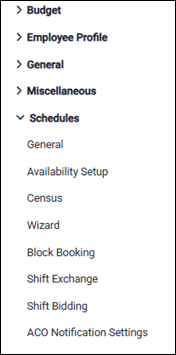

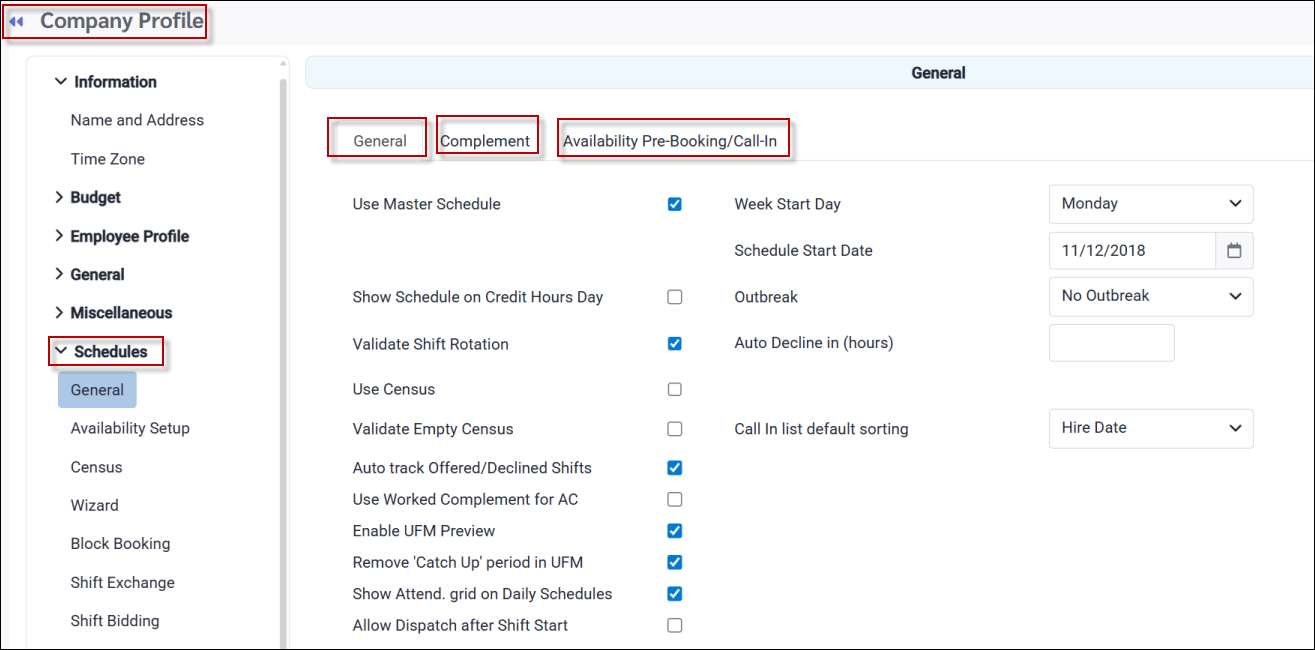
The Company Profile / General menu contains the following three tabs:
1.General 2.Complement 3.Availability Pre-Booking/Call-Ins
The General Tab
Use Master Schedule Tick to activate the Master Schedule menu options.
Show Schedule on Credit Hours Day If ticked, the shift will appear on the day defined when configuring the Day Code. This setup will be reflected on the schedule and the schedule reports as well.
Validate Shift Rotation If Shift Rotations are configured for scheduling, this field should be ticked. The scheduling component of Shift Rotations allows for simple, consistent scheduling which may be used with or without Master Schedule.
Use Census Will active the Census option.
Validate Empty Census Will generate a notification if Census is empty.
Auto track Offered / Declined Shifts If enabled, this option will track shifts booked with call-in mode turned off, in a way that is similar to when call-in mode is on. For example, if a shift is booked through the Daily Schedule, the phone icon will appear on the Active Schedule, with a tool tip indicating the name of the user and the time the shift was booked. The audit report will also track this record in the telephone call history. This option should be disabled if the above should only apply when employees have been called.
Enable Update from Master Preview This option allows you to enable the Enhanced Update from Master process.
Remove Catch up Period in Update from Master When enabled, this feature lets you skip update periods without requiring the system to run long background processes to catch up. You can simply run the update for the desired current period without processing all skipped periods.
Show Attend Grid on Daily Schedules If enabled, an Attendance Code grid will appear in the bottom-left section of your Daily Schedule menu.
Allow Dispatch after Shift Start Tick this option to allow dispatching of shifts that are already in progress.
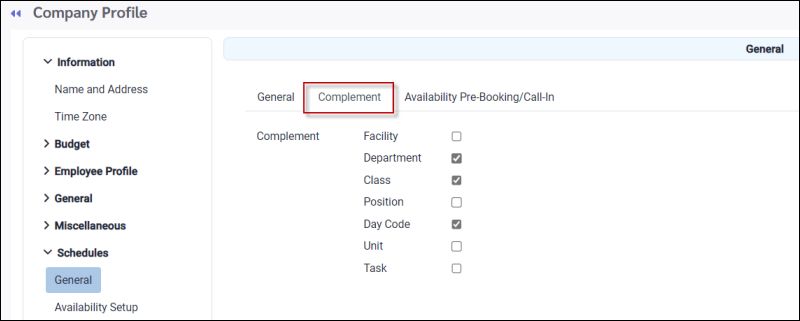
Complement
Tick the fields that are to be required fields for your facility when employees are scheduled. Managers will be prompted to add the field if a required field is missing when schedules are added or modified.
|
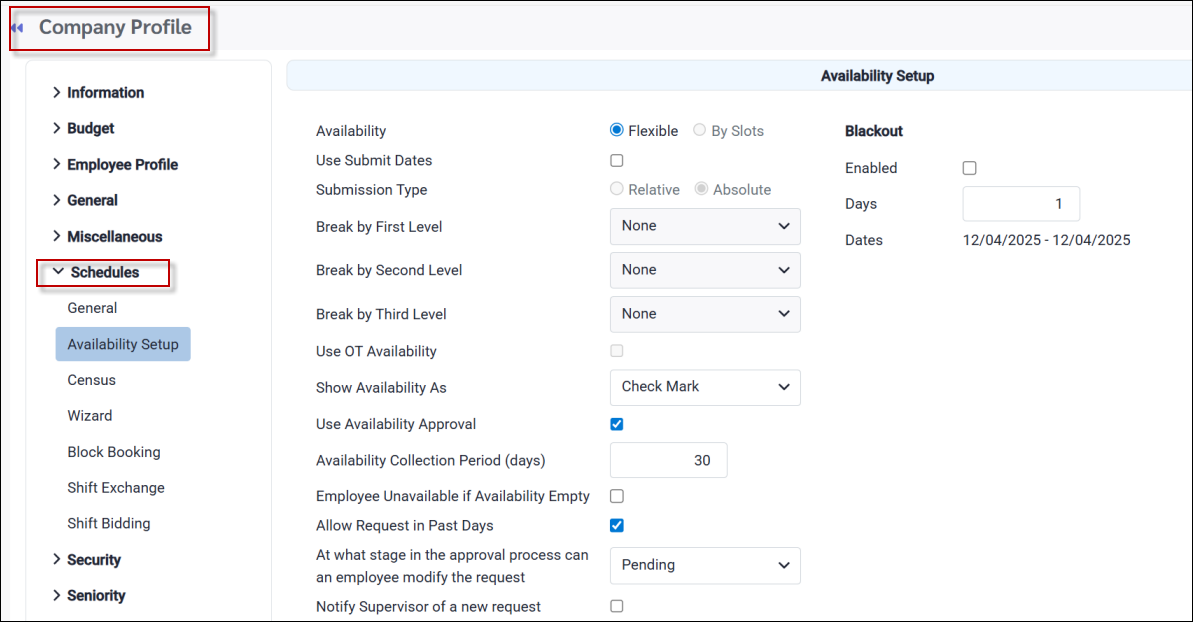
Please see Availability for further information.
|
▪Select the Config menu. ▪Select the Setup menu.
▪Select Company Profile
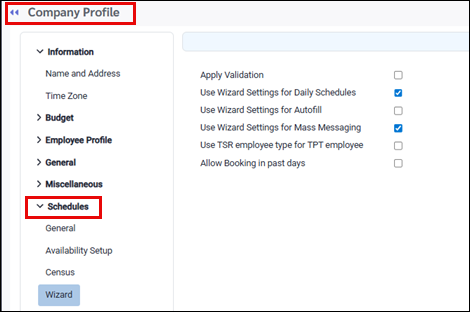
▪Click on the Schedules menu. ▪Click on the Wizard menu.
Apply Validation This option will validate the schedule rules again at the time of accepting a shift.
Use Wizard Settings for Daily Schedule If ticked this option will display the Wizard Sorting level configuration on the Daily Schedule for call in purposes.
Use Wizard Settings for Autofill If ticked this option will apply the Wizard Sorting level configuration to the Autofill sorting levels.
Use Wizard Settings for Mass Messaging If ticked this option will apply the Wizard Sorting level configuration to the Mass Messaging sorting levels.
Use TSR Employee Type for TPT Employee Tick this option if the employee temporarily taking over a line through Temporary Shift Replacement, must assume the Type (full-time, part-time or casual) of the employee on leave. For example a part-time employee may take the line of a full-time employee on leave and may therefore need to assume full-time status for call-in purposes.
Allow Booking in Past Days Tick this option to allow the booking of shifts for a period / day that has already passed.
|
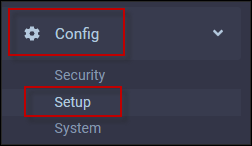

▪Select the Config menu. ▪Select the Setup menu.
▪Select Company Profile
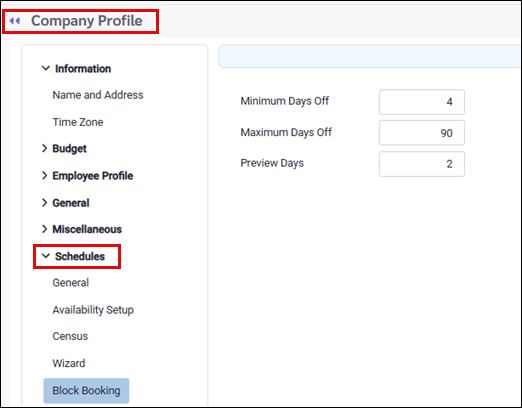
▪Click on the Schedules menu. ▪Click on the Block Booking menu.
Minimum Days Off This option will determine the minimum number of days off to be considered a block. For example if your minimum is set to three (3) and you unbook two (2) shift, they will not be considered a block. If you unbook five (5) shifts, however, they will be considered a block.
Maximum Days Off This option will determine the maximum number of days off to be considered a block. In the example above, anything above 90 days booked off will not be considered part of the block.
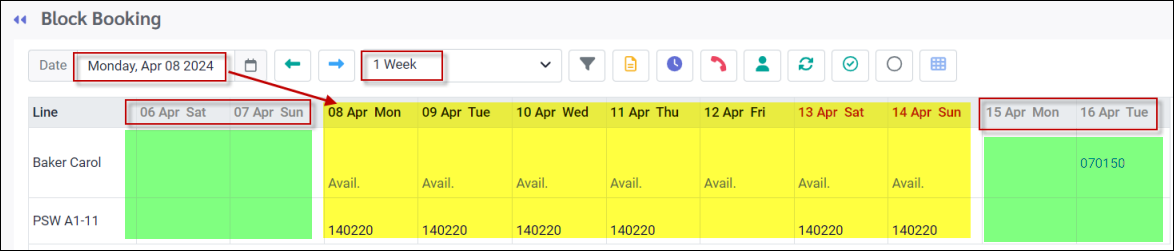
Preview Days This option allow you to set the number of additional days you may see before and after your time interval setting e.g. one week, two weeks etc. See image below (green) with a Preview Days setting of two (2).
|
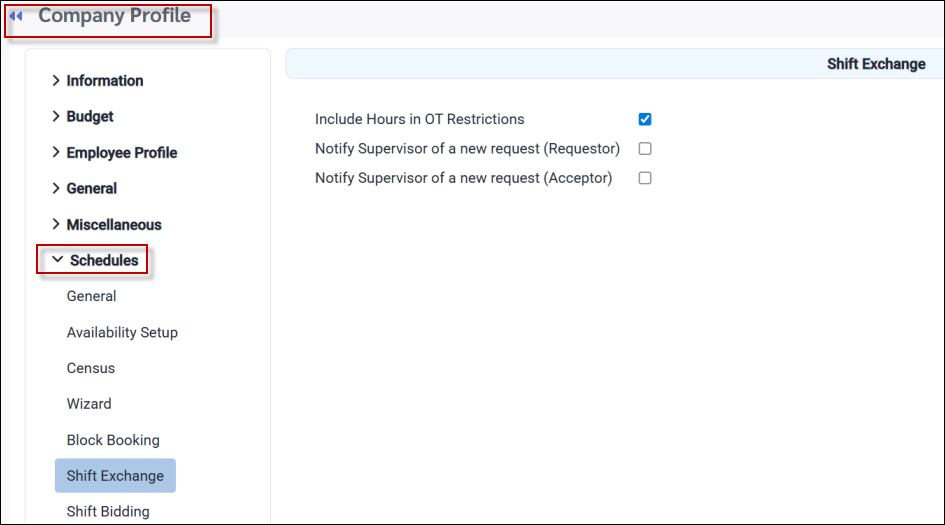
Tick Include Hours in OT Restriction to restrict overtime for exchanged shifts that would otherwise generate period-based overtime (e.g., biweekly). This setting does not restrict overtime from other sources, such as overtime triggered by breaking the minimum-time-between-shifts rule.
You may also enable the fields that notify the supervisor of new requests and responses from both the employee requesting the shift exchange and the employee accepting it.
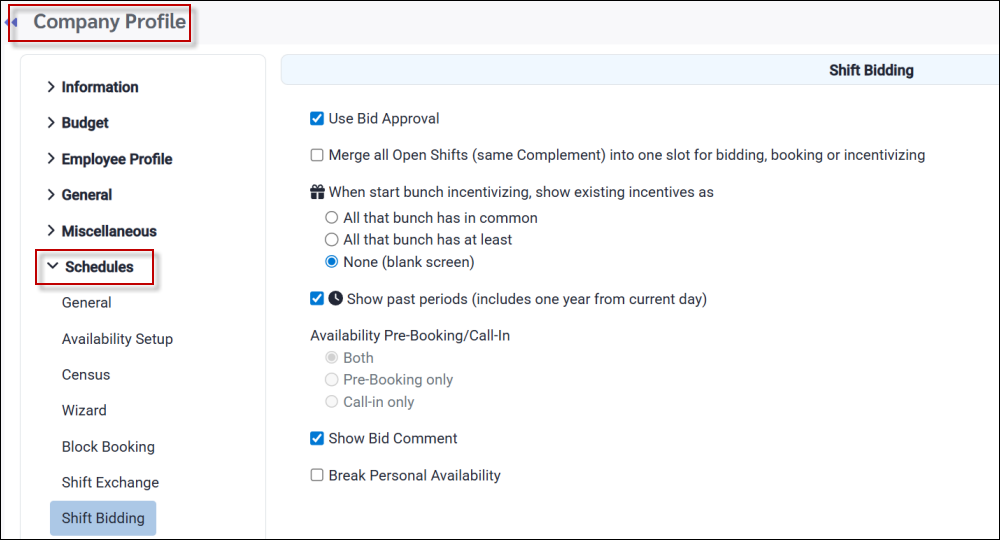
The following fields may be enabled for the default Shift Bidding configuration.
|
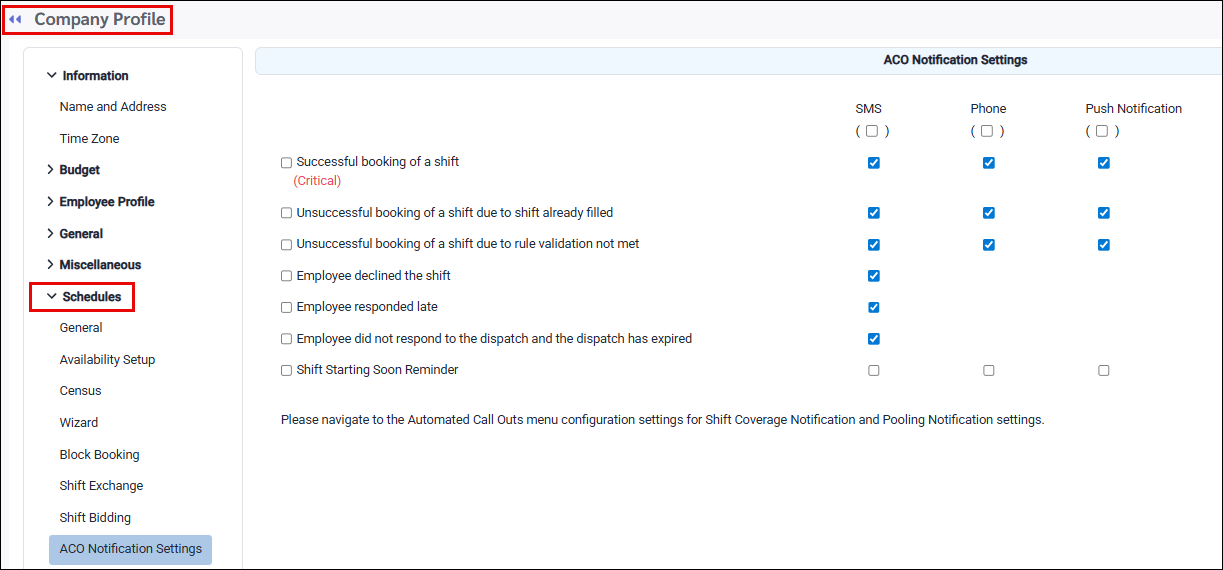
This section allows managers (users) to control which automated notifications are sent to employees, and through which communication methods, to support compliance with union agreements. The notification settings apply company-wide to all employees and are enforced for all ACO dispatches. Employees cannot modify these settings individually; all changes are managed centrally from the Company Profile. Access to this section requires security permission.
▪Select the Config menu. ▪Select the Setup menu.
▪Select Company Profile
▪Click on the Schedules menu. ▪Click on the ACO Notification Settings menu.
Select the notification settings to be applied.
All changes are recorded in the audit report, including who made the change, the date and time, which notification and communication method were modified, whether they were enabled or disabled, and any updates to the Shift Starting Soon threshold with old and new values. Saving with all notifications disabled is allowed.
|

See Also: