Active Schedule
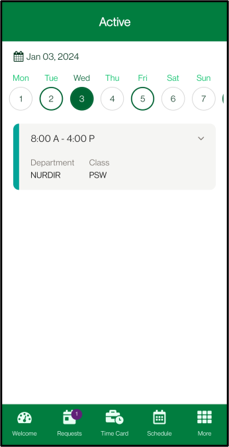
The Active Schedule allows you to view your schedule and see when you have shifts, up to the Posted Date.
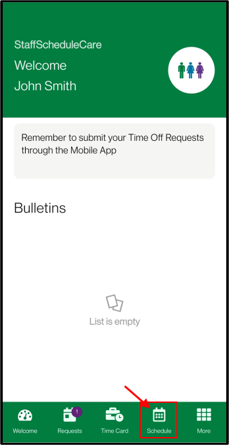
Navigate to Active Schedule menu.
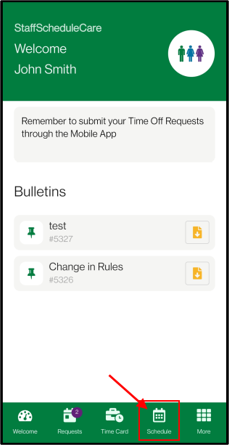
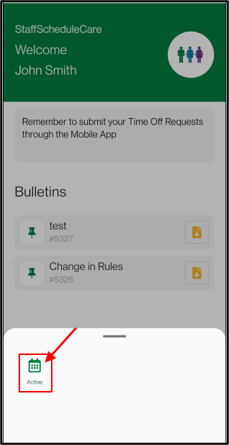
Tap on selected date to view details. You can swipe left / right to navigate within the selected month. Tapping on the date will open a calendar you can use to change months.
Dates with shifts have a green outline. Dates with a grey outline have Future Master Schedule.
Shift Bidding (Self- Scheduling) Menu
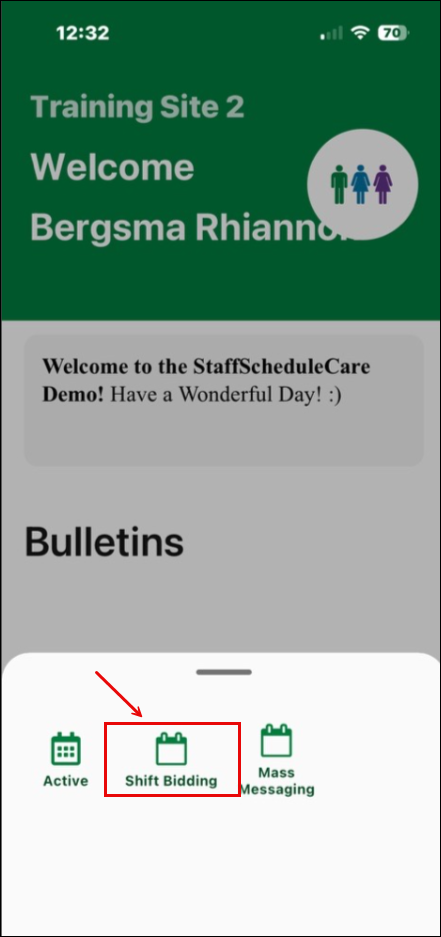
Navigate to the Shift Bidding menu.
Select the date to view available shifts to bid on. Dates with shifts available will be available for selection. Any dates without any available shifts or that are outside of the bidding period will be greyed out and not selectable.
You can swipe left / right to navigate within the selected month.
Tapping on the date will open a calendar you can use to change months.
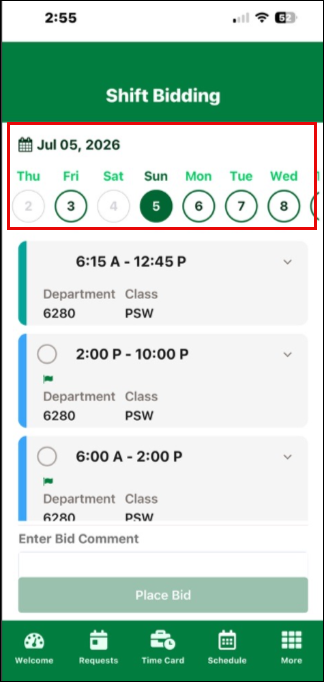
Shifts with a green colour are shifts you are already scheduled to work. Shifts with a blue colour and a flag symbol are shifts available for bidding. Tap on the shifts you are interested in. You can select multiple shifts per day.
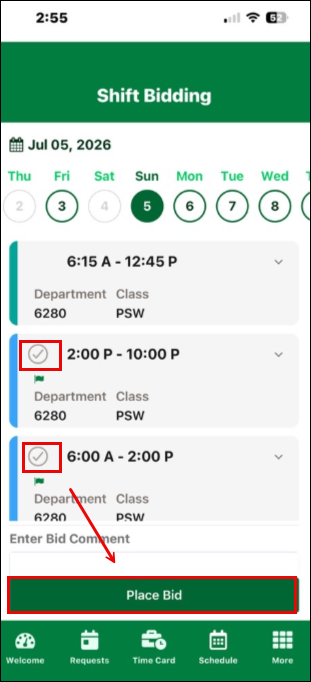
Tap on the Place Bid button.
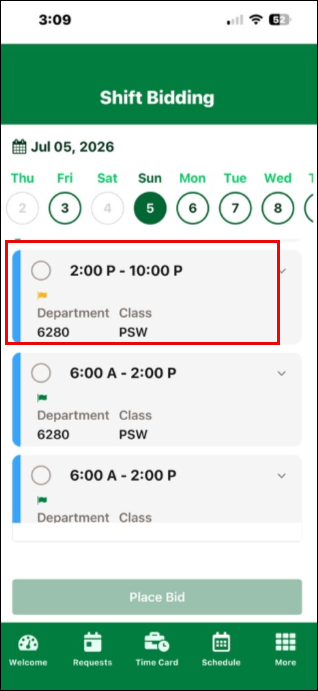
If you select a shift you previously bid on, you can remove your bid by selecting Place Bid again on that same shift. Shifts you have already placed a bid on will display a yellow flag.
How to Respond to Mass Messaging
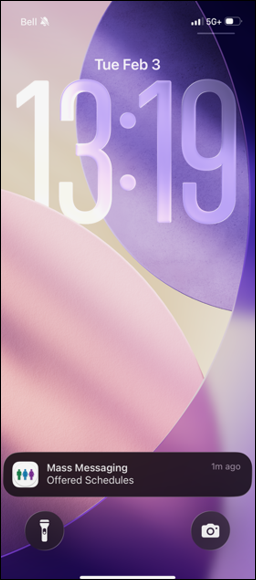
Requires the Push Notification settings for Mass Messaging to be turned on.
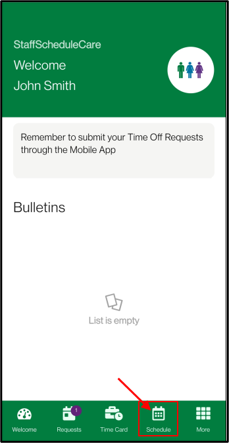
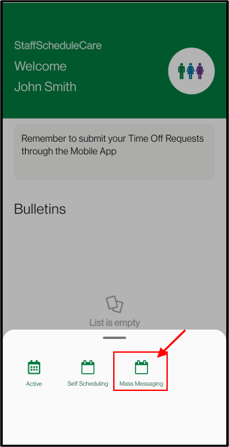
Navigate to the Mass Messaging menu.
Direct Booking Methods
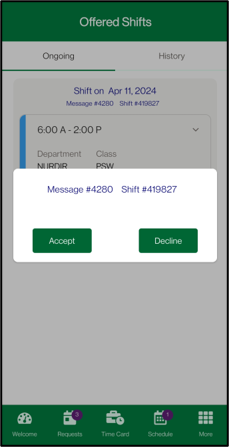
For direct booking methods of Mass Messaging or Automated Call Outs, tap on the dispatch under Ongoing to submit a response. Select Accept or Decline.
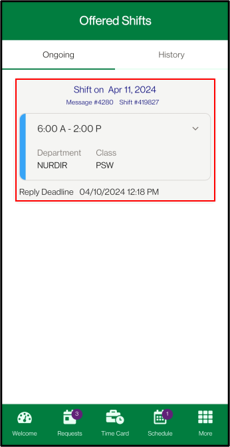
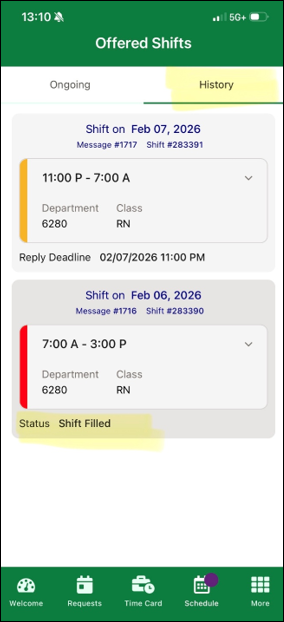
The History tab will show dispatches that expired in the last 30 days. This will also show if employees responded to the dispatch.
If the shift is accepted, employees will be immediately notified that they were awarded the shift.
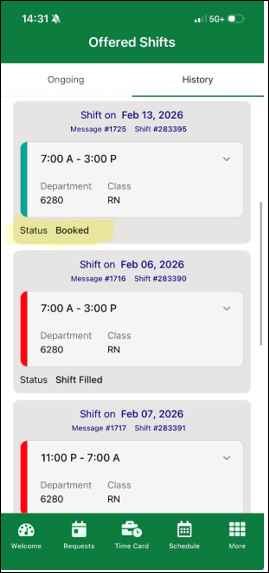
If the dispatch shows a green colour, it means the employee accepted the shift. If the dispatch shows a red colour, it means the employee declined the shift. If the dispatch shows a yellow colour, it means no response was provided.
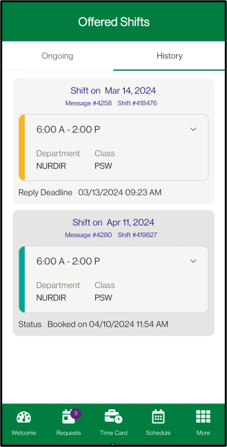
If someone else is awarded the shift, the message will disappear from the app and employees will no longer be allowed to respond.
Indirect Booking Method (Broadcast & Pool)
For Broadcast & Pool (indirect booking method), the system will collect employee responses, and the manager will assign the shift. The shift offer will appear as follows:
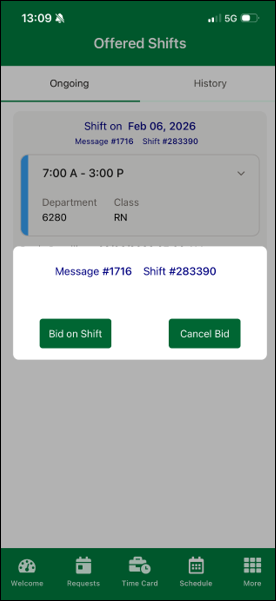
Select Bid on Shift and the shift will indicate that the bid was placed (yellow below):
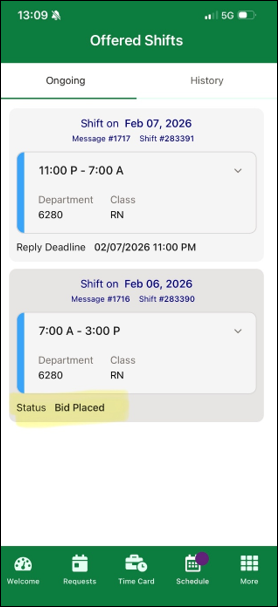
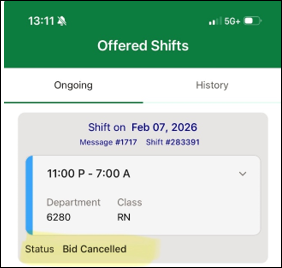
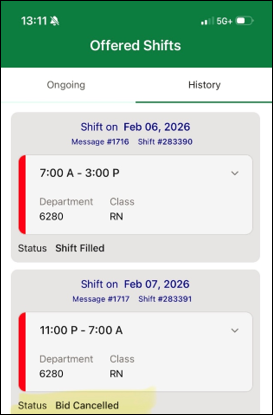
If Cancel Bid was selected, the status will reflect this in both the Ongoing and History options, as shown below:
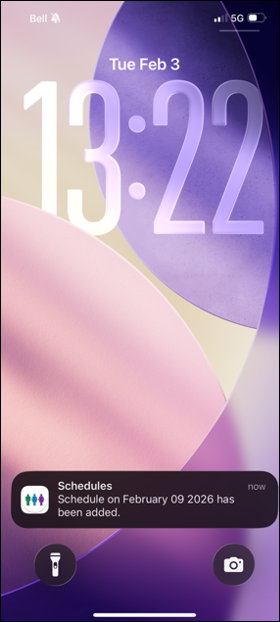
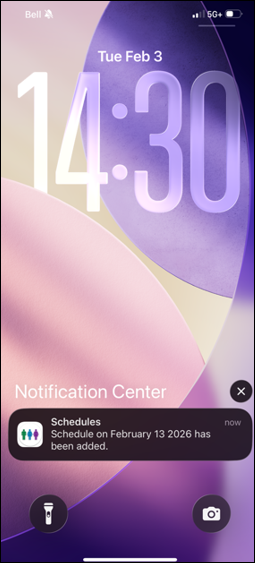
If the shift is awarded, employees will be notified, and the shift will be visible on the schedule: