Managers can review and correct employee time card exceptions directly from the mobile app. This allows time card discrepancies to be addressed on the fly, ensuring employee hours are accurate and ready for payroll processing.
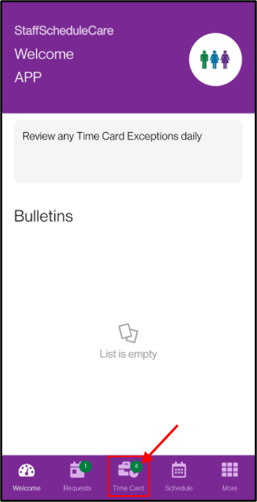
Navigate to the Time Card menu.
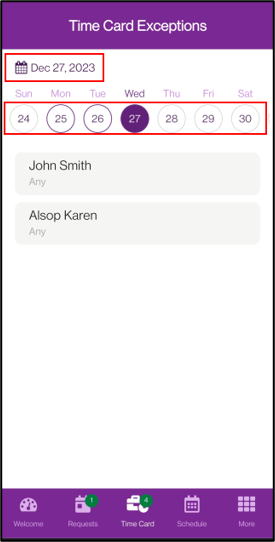
The menu will be automatically set to the previous day to review exceptions.
Date can be changed with the date selector at the top. The carousel displays the entire month, you can scroll left/right to select dates.
To change months, or jump quickly, you can tap on the date above to bring up a calendar. The date range within the Time Card widget period will be highlighted if there is an exception on those days.
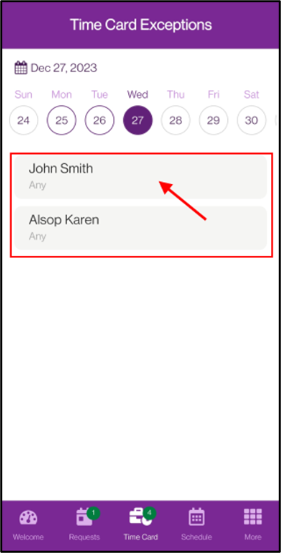
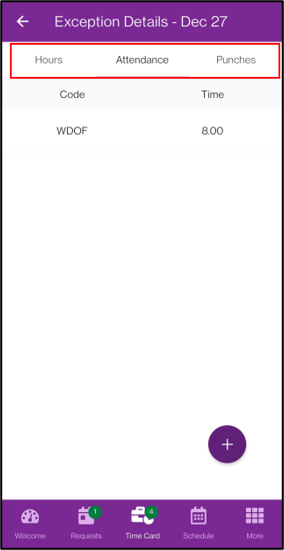
▪Tap on the employee record to view their exception. The exception will display the Attendance Code list for the date to display the exception. You can also change to the Hours or Punches tabs.
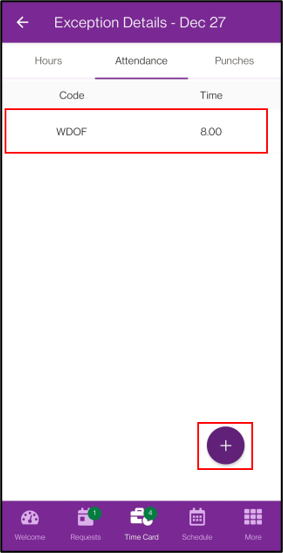
▪Tap on an existing record to edit the values.
▪Tap on the plus symbol (+) to add a new record.
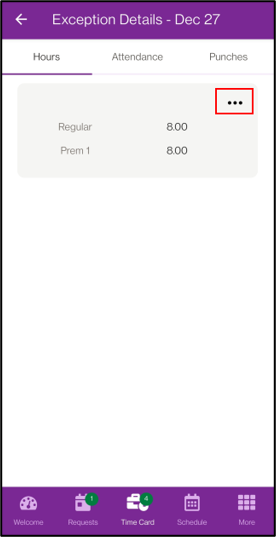
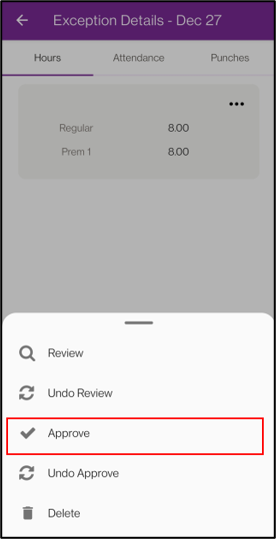
When you are finished with your adjustments. On the Hours tab you can tap on the three dots to approve the date.