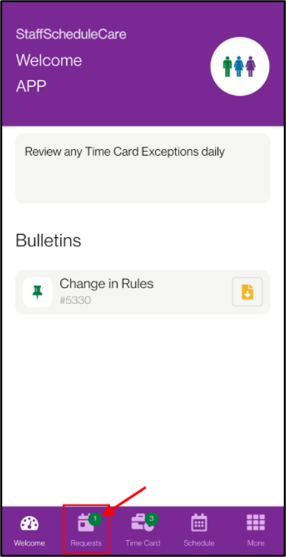
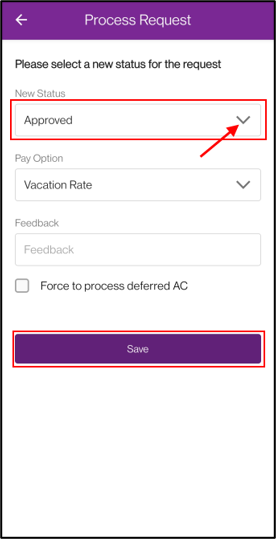
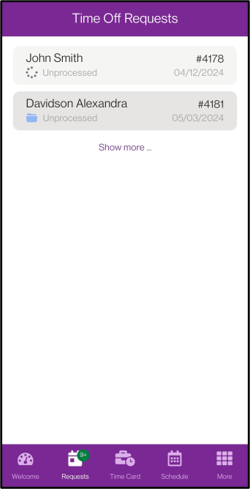
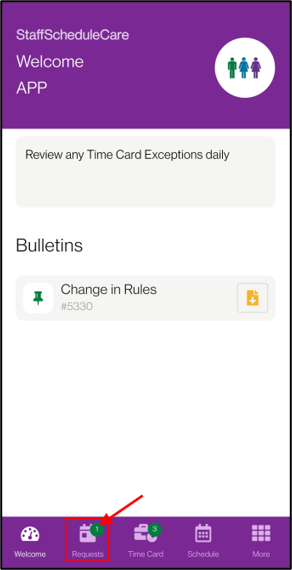
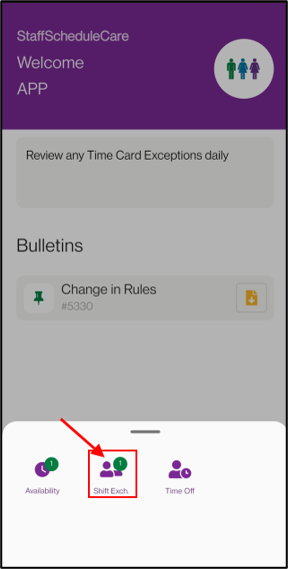
Managers can review and process employee requests directly from the mobile app, making it easy to stay on top of incoming activity without delay. From the Requests menu, managers have access to process time off, shift exchange, and availability (optional) requests.
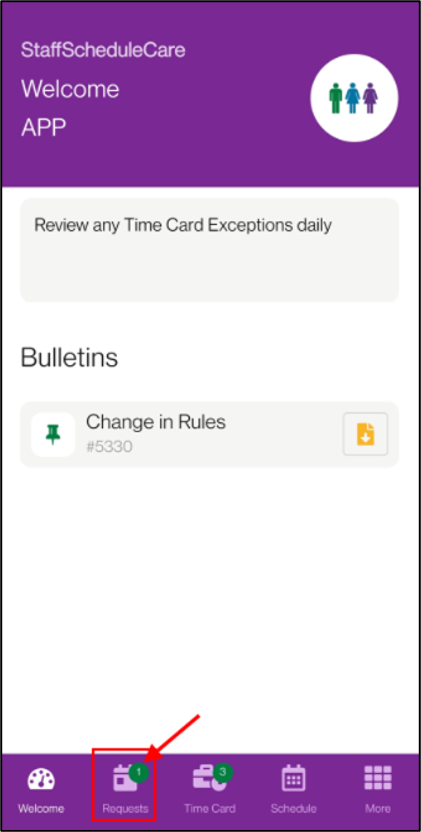

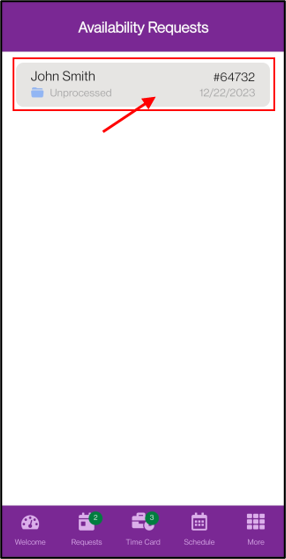
Navigate to Availability Requests menu.
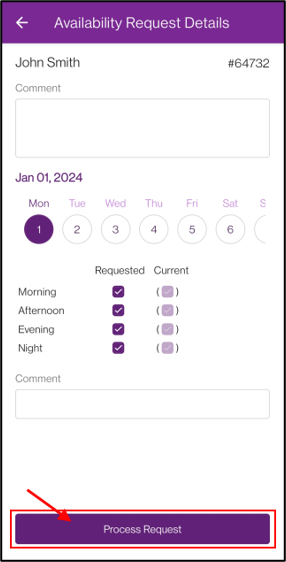
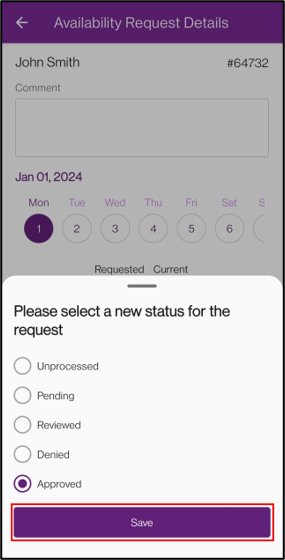
▪Select the request you want to process. Only requests that have yet to be approved or denied will appear on the list. ▪Review the request details. ▪Tap on the Process Request button. ▪Select the new status of the request. ▪Tap Save.
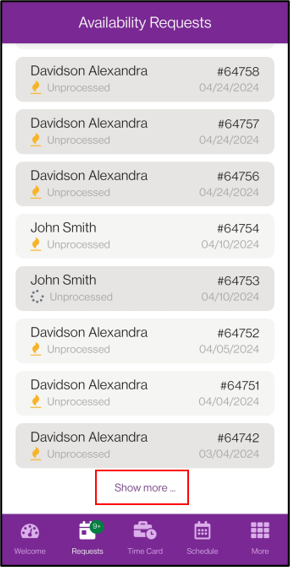
To review old requests, there is a Show More button that can be clicked at the bottom of the request list. Clicking on the button the first time will expand the list to show all requests in the current year. Clicking on the button a second time will show the requests from the previous year. Each additional click on the button will continue to show the previous year. Note that any unprocessed requests that contain dates in the future will still appear when viewing previous requests. You can pull downwards from the top of the list to refresh and revert back to normal view of the request list.
|
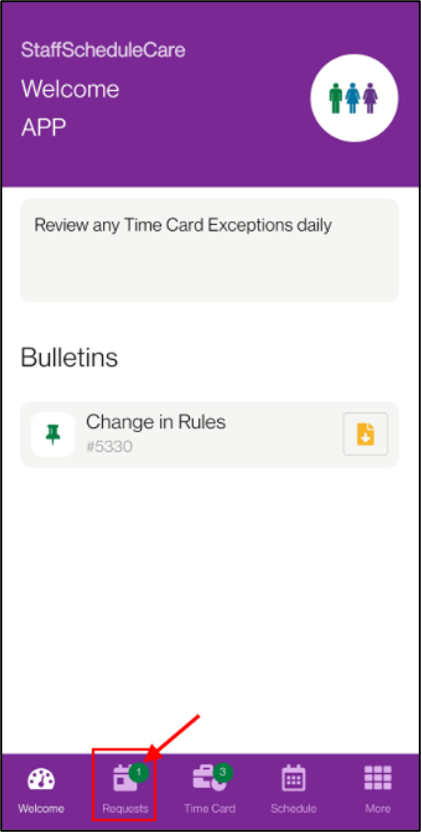
Navigate to the Shift Exchange Requests menu.
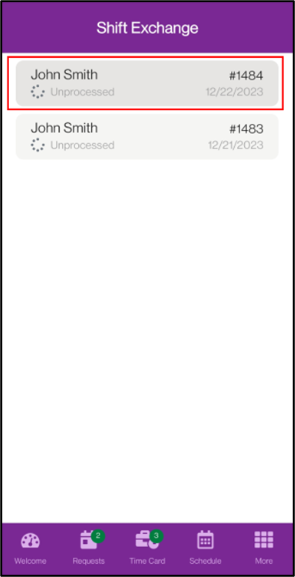
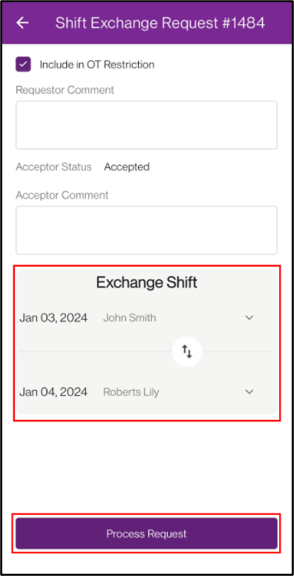
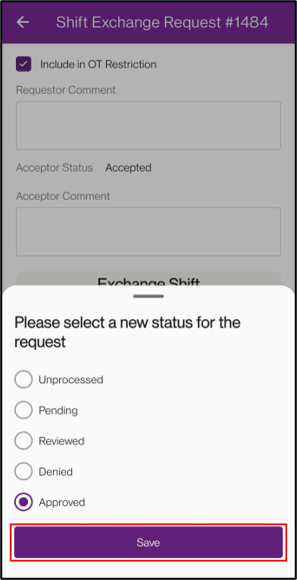
▪Select the request you want to process. Only requests that are Unprocessed or Pending appear on this list. ▪Review the request details. Only requests that the Acceptor has accepted will show the Process button. ▪Select the new status of the shift exchange request and tap Save.
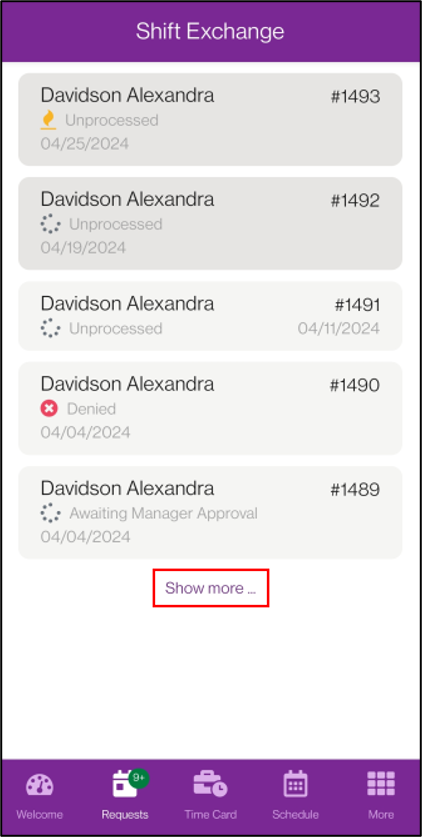
To review old requests, there is a Show More button that can be clicked at the bottom of the request list. Clicking on the button the first time will expand the list to show all requests in the current year. Clicking on the button a second time will show the requests from the previous year. Each additional click on the button will continue to show the previous year. Note that any unprocessed requests that contain dates in the future will still appear when viewing previous requests. You can pull downwards from the top of the list to refresh and revert back to normal view of the request list.
|
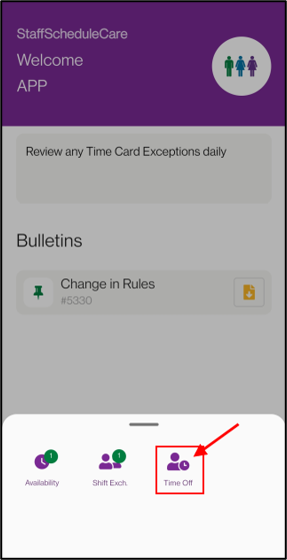
Navigate to the Time Off menu.
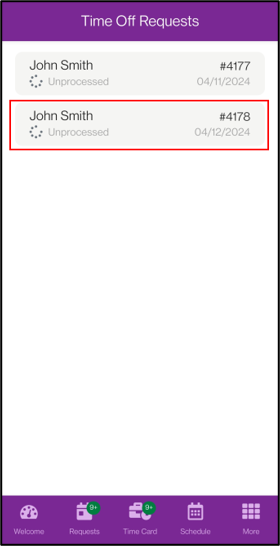
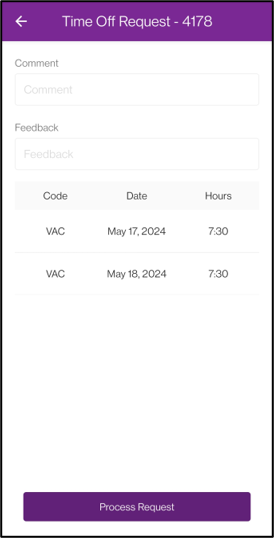
▪Select the request you want to process. Only requests that have yet to be approved or denied will appear on the list. ▪Review the request details. ▪Tap on the Process Request button. ▪Select the new status of the time off request and tap Save.
To review old requests, there is a Show More button that can be clicked at the bottom of the request list. Clicking on the button the first time will expand the list to show all requests in the current year. Clicking on the button a second time will show the requests from the previous year. Each additional click on the button will continue to show the previous year. Note that any unprocessed requests that contain dates in the future will still appear when viewing previous requests. You can pull downwards from the top of the list to refresh and revert back to normal view of the request list.
|