Managers can view daily schedules, apply absenteeism attendance codes, and fill open shifts directly from the mobile app using Mass Messaging or the Wizard. Where workplace policy restricts employees from receiving messages while on the floor, notifications can be routed to a scheduler instead.

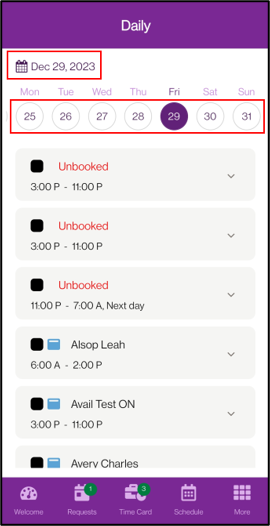
The Daily Schedule will show all shifts that you have access to for each day. This includes both filled and unfilled shifts.
The date can be changed with the date selector at the top. The carousel displays the entire month, you can scroll left/right to select dates. To change months, or jump quickly, you can tap on the date above to bring up a calendar.
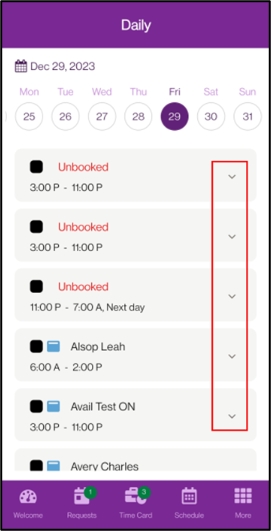
The arrow can be used to see more details about each shift.
|
Filling Unfilled Shifts
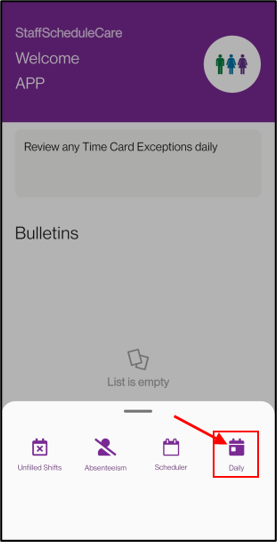
Navigate to the Unfilled Shifts menu.
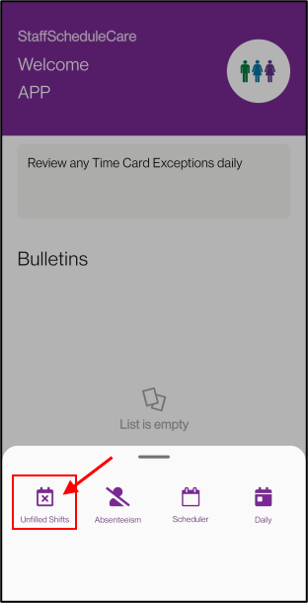
The date can be changed with the date selector at the top. The carousel displays the entire month; you can scroll left/right to select dates. To change months, or jump quickly, you can tap on the date above to bring up a calendar.
Select the shift you want to fill. Decide if you want to use the Scheduling Wizard or Mass Messaging.
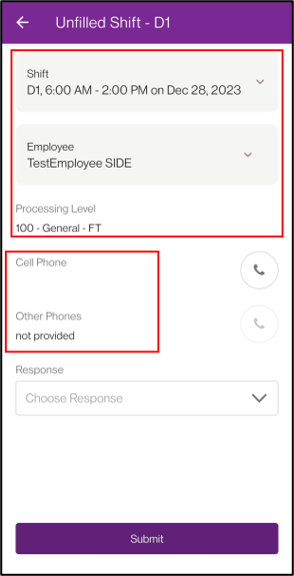
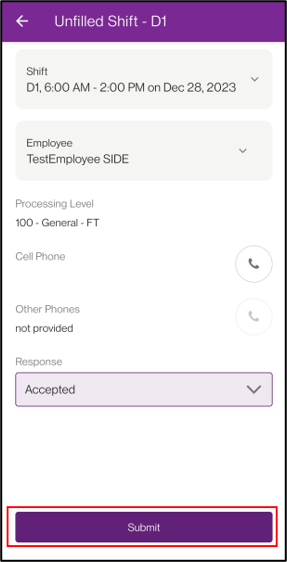
The shift details will be shown at the top. The current employee that is eligible for this shift will be shown. This employee is chosen based on the Wizard Level. The employee’s contact information will be shown below.
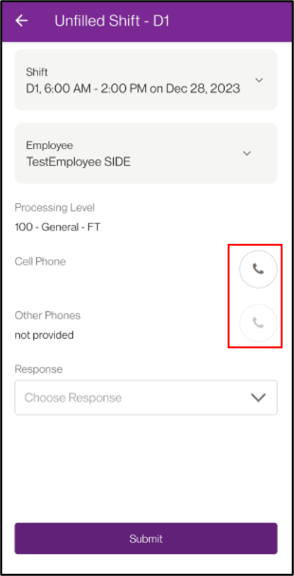
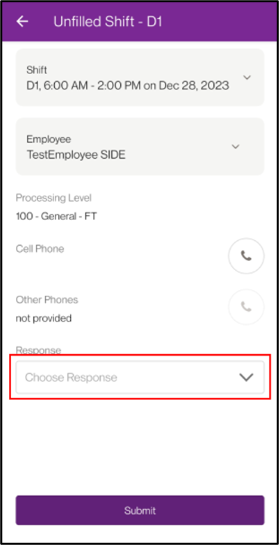
Tapping on the phone icon will automatically redirect you to your device’s calling app and begin to call the employee. Submit the employee’s response through the drop-down list.
Tap on Submit. The Wizard will cycle through all eligible employees until an Accepted response is submitted, or there are no more eligible employees.
|
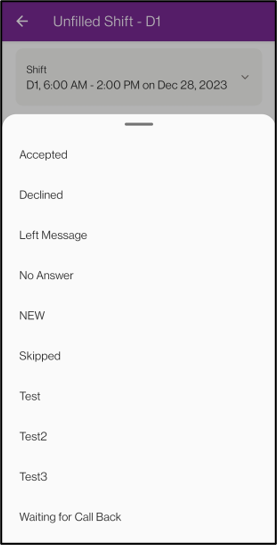
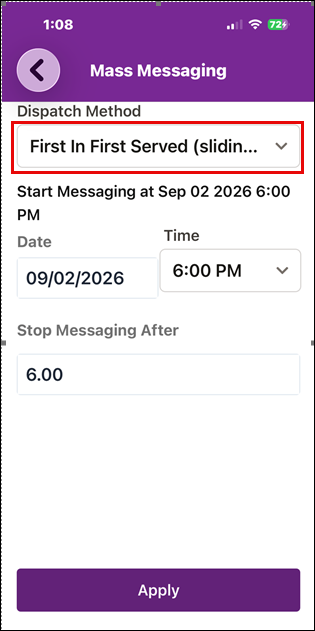
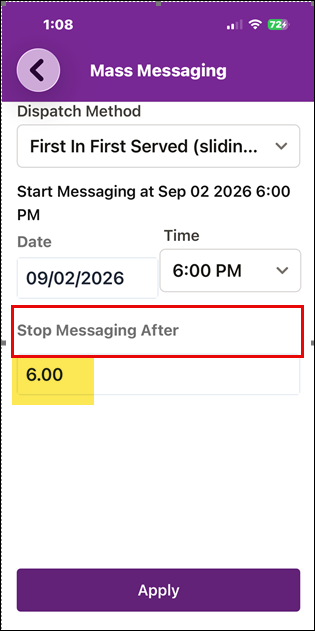
▪Select the Dispatch Method that you would like to use for the Mass Messaging of the selected shift. New dispatches will start at the specified date/time. ▪Enter a duration (in hours) in the Stop Messaging After field. This field is only available for dispatches sent using the mobile application. ▪Click Apply.
|
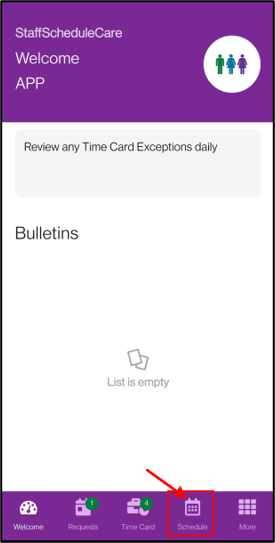
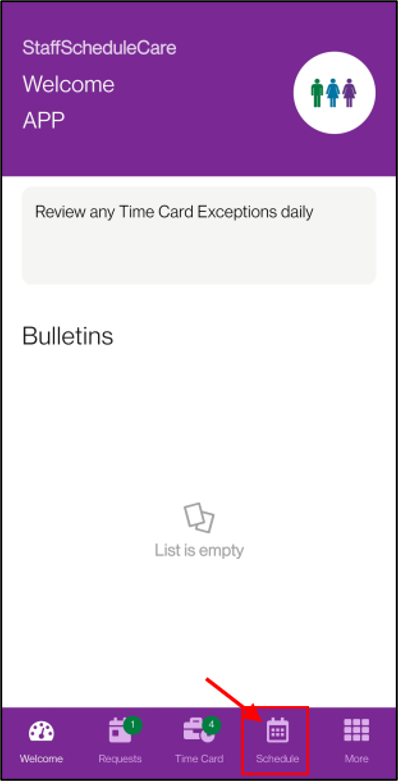
Dispatch messages from Mass Messaging will appear on this menu when the Scheduler is turned on. These messages will be for employees that are currently working and were scheduled to receive a dispatch. You can access the Scheduler through the Schedule menu.
Tap on the dispatch message. The intended employee’s name will be shown. You can contact that employee to get their response, and enter the response on their behalf. The employee's current shift will be displayed. This will help you locate the employee in the facility to get their response.
|
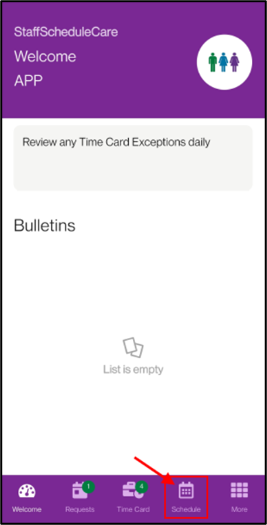
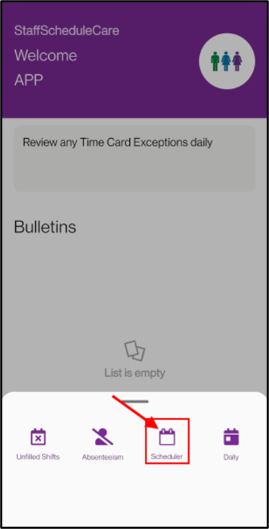
How to Add Absenteeism with Attendance Codes
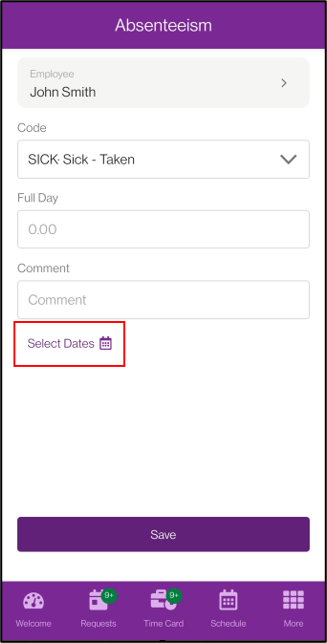
▪Select the employee you wish to add an Attendance Code for.
▪Select the Attendance Code.
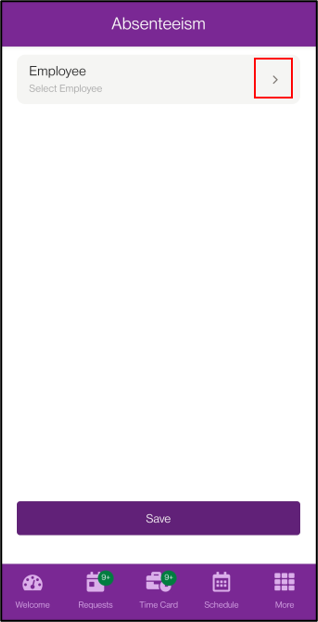
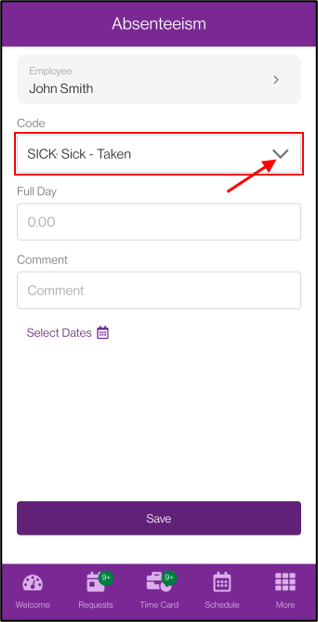
Enter the number of hours for the attendance code. If the selected date has a scheduled shift, the hours field can be left blank and the system will automatically use the shift length.
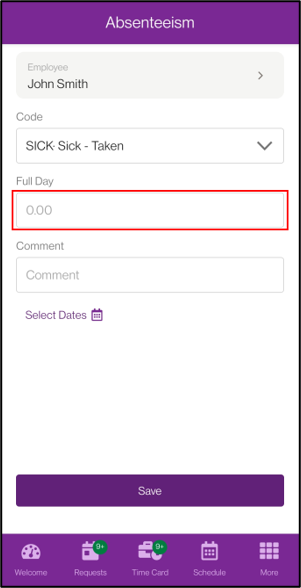
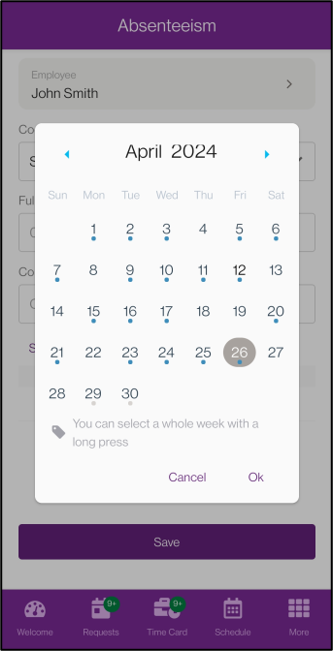
▪Select the date. You can tap and hold to select an entire week. Generally used if your facility follows OESA rules for vacation. Dates where the employee is scheduled for a shift are shown with a blue dot. Dates with a grey dot show future Master Schedules.
▪If dates were selected by mistake, you can deselect them by tapping (or holding for weeks) on the date again.
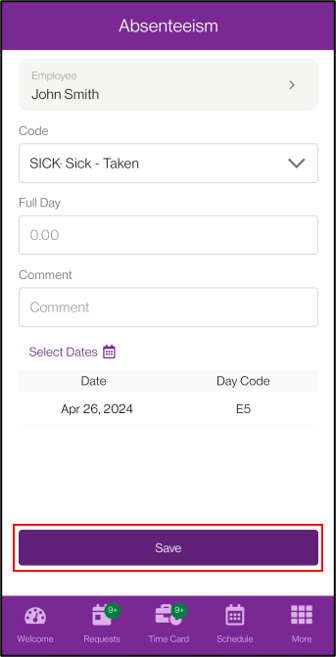
▪Tap the Save button.