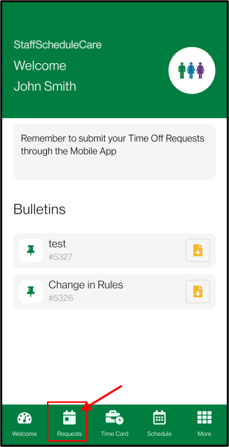
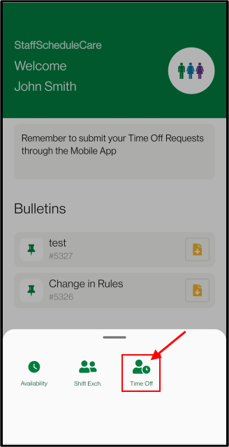
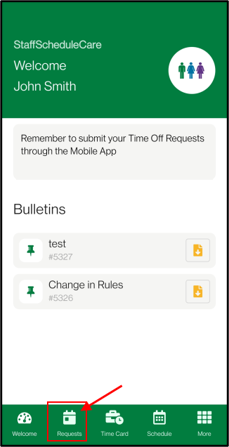
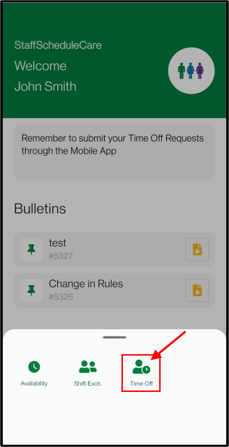
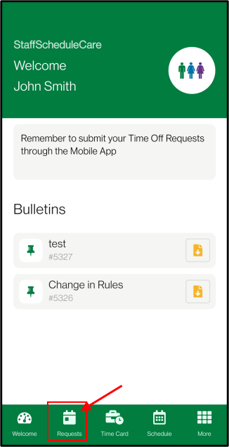
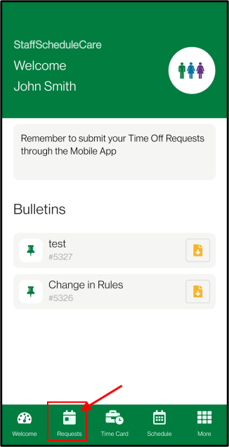
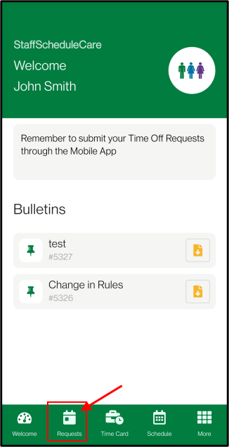
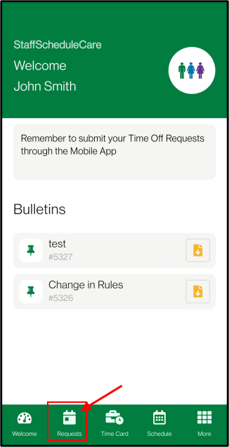
Employees can submit and manage requests directly from the mobile app, making it easy to stay on top of their scheduling needs without delay. From the Requests menu, you have access to submit time off, shift exchange, and availability requests.
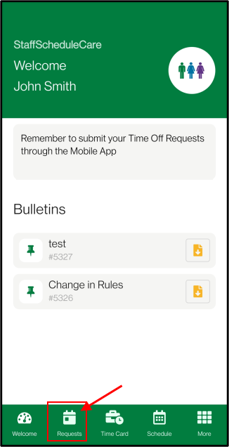

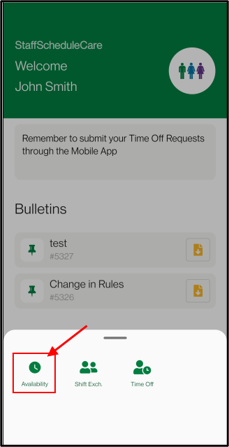
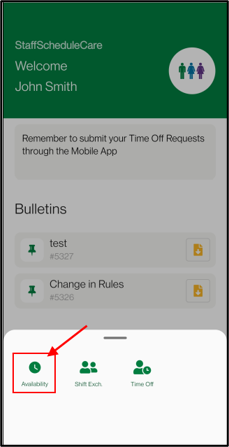
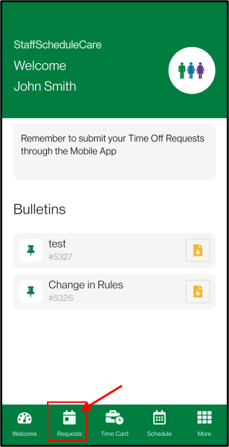
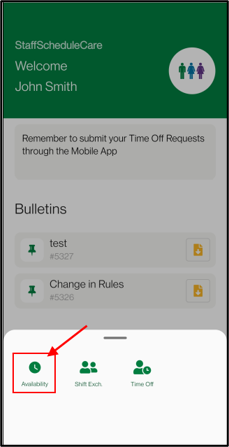
Navigate to Availability Requests menu.
Daily Availability Requests
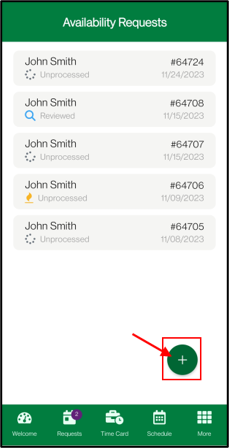
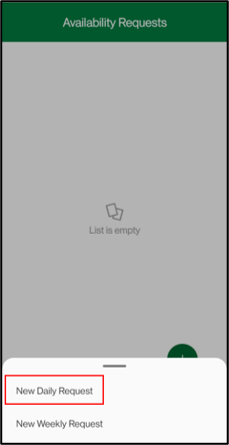
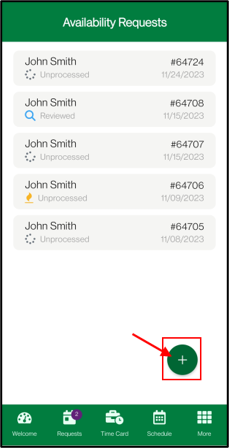
Tap on New Request.
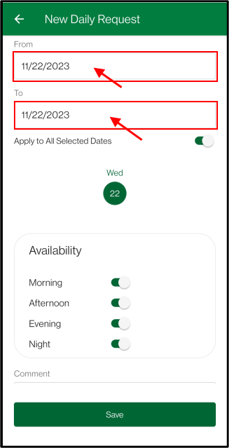
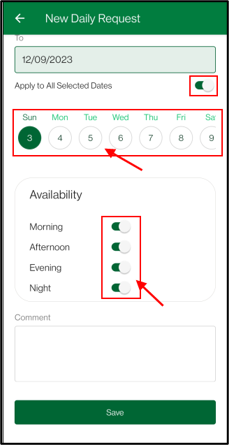
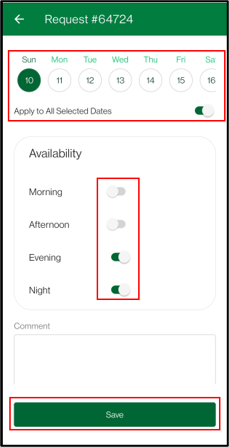
▪Adjust the date range you’d like to adjust availability for. ▪Adjust the availability. If Apply to All Selected Dates is turned off, you will need to select the availability for each selected date individually.
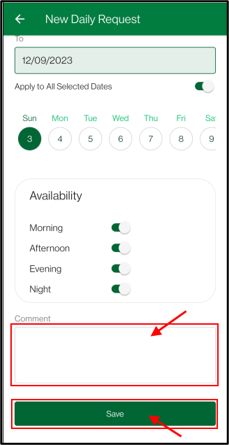
▪Enter a comment if applicable. ▪Tap on the Save button.
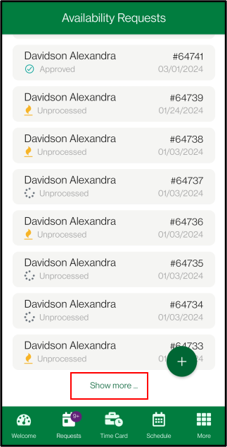
To review old requests, there is a Show More button that can be clicked at the bottom of the request list. Clicking on the button the first time will expand the list to show all requests in the current year.
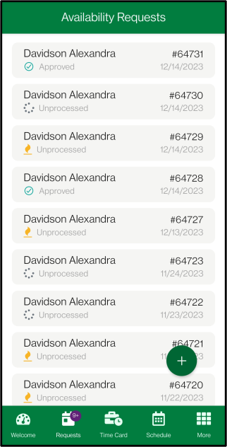
Clicking on the button a second time will show the requests from the previous year. Each additional click on the button will continue to show the previous year. Note that any unprocessed requests that contain dates in the future will still appear when viewing previous requests.
You can pull downwards from the top of the list to refresh and revert back to normal view of the request.
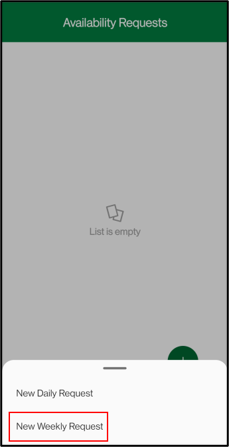
Weekly Availability Requests
Navigate to Availability Requests menu.
Tap on New Request.
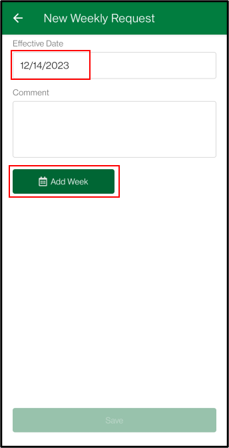
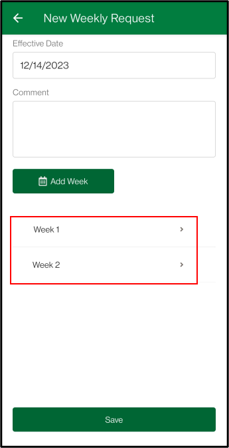
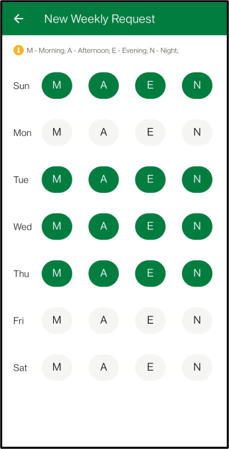
▪Adjust the weekly rotation start date. ▪Tap on Add Week to add a new week to the rotation. ▪Tap on the week to adjust the individual availability for each day in that week. Repeat for any additional weeks added to the request.
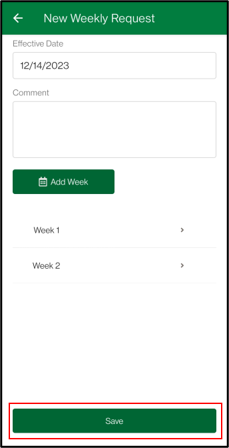
▪Enter a comment if applicable. ▪Tap on the Save button.
Editing Availability Requests
Navigate to Availability Requests menu.
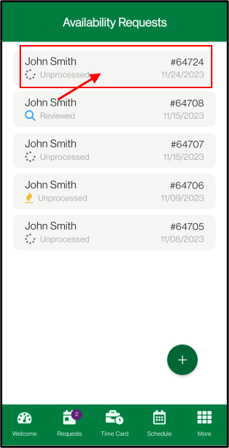
Tap on the submitted availability request that is still unprocessed which you want to adjust.
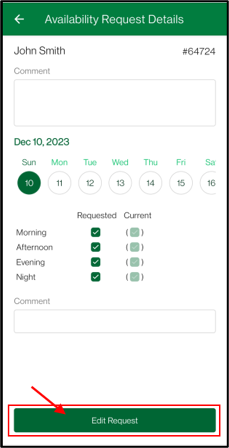
Tap on the Edit Request button.
▪Adjust the availability for the dates selected as part of the request. For weekly requests, tap on the weeks to make adjustments. ▪Adjust Comment if applicable. ▪Tap on the Save button.
|

Shift Exchange Requests
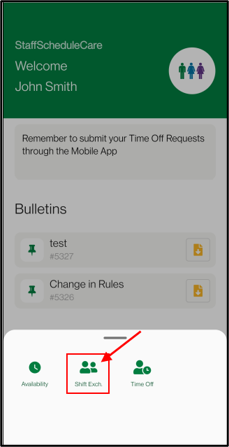
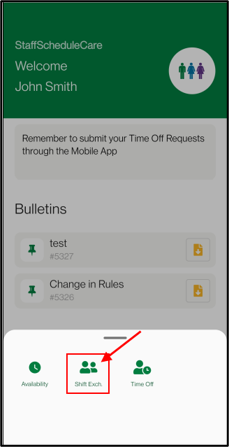
Navigate to the Shift Exchange menu.
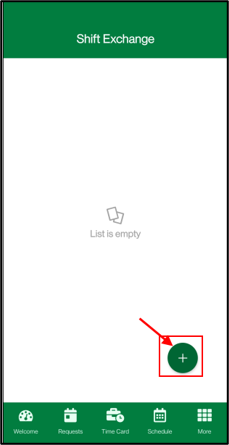
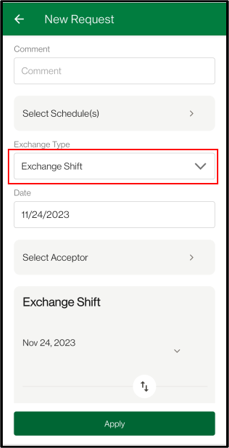
Tap on New Request.
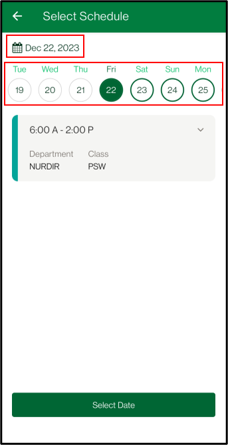
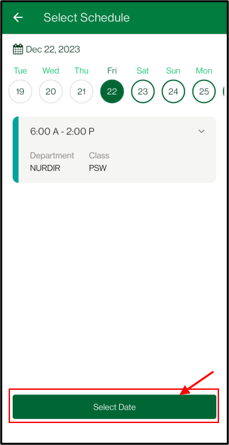
▪Select the shift that you would like to offer to exchange. You can swipe left / right to navigate within the selected month.Tapping on the date will open a calendar you can use to change months. Dates with shifts booked will be shown with a green outline. ▪Tap on the date to view the shift details. ▪Tap on Select Date button.
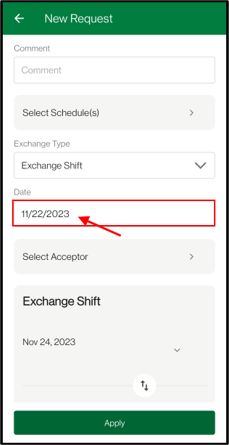
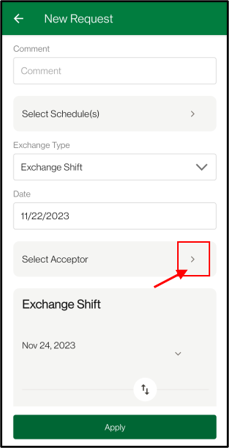
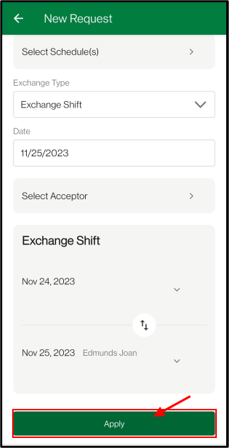
▪Change the Date field to the new date you want to exchange your shift for. ▪Tap on Select Acceptor.
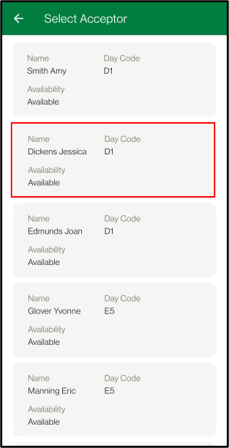
Review the list of acceptors and find the other employee you’d like to exchange with. Select the employee you wish to exchange shifts with.
Tap on Apply button. The request will be sent to the Acceptor to be reviewed.
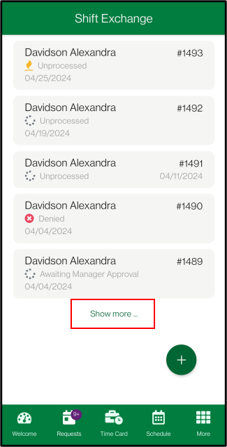
To review old requests, there is a Show More button that can be clicked at the bottom of the request list. Clicking on the button the first time will expand the list to show all requests in the current year.
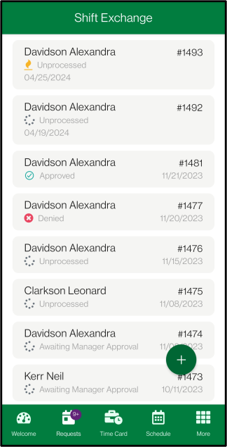
Clicking on the button a second time will show the requests from the previous year. Each additional click on the button will continue to show the previous year. Note that any unprocessed requests that contain dates in the future will still appear when viewing previous requests.
You can pull downwards from the top of the list to refresh and revert back to normal view of the request list.
Shift Give Away Requests
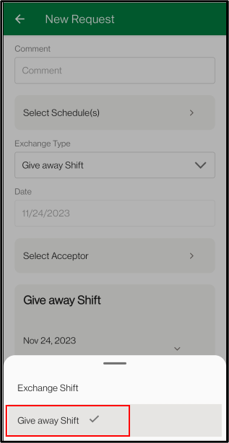
If your facility allows for shift give aways:
During the new shift exchange process, select the Exchange Type and change it to Shift Give Away.
How to Accept a Shift Exchange Requests
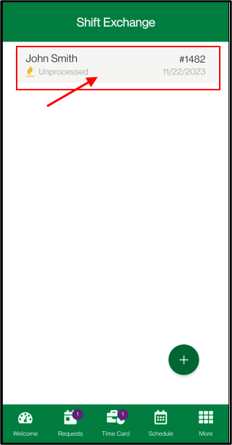
When another employee sends a shift exchange request and you are the Acceptor, you can view the request on the Shift Exchange menu.
Navigate to the Shift Exchange menu.
Requests that have a different name are requests sent by other employees to you to be reviewed.
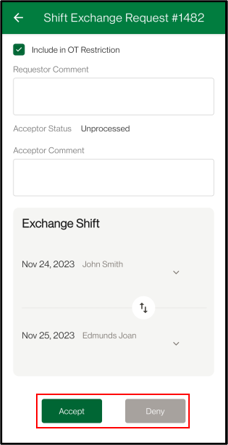
▪Tap on the request. ▪Review the details and dates of the proposed exchanged shifts. ▪Enter a comment if applicable. ▪Tap on the Accept button. If you do not want to exchange shifts with the requester, you can tap on the Deny button.
|
Requesting Time Off
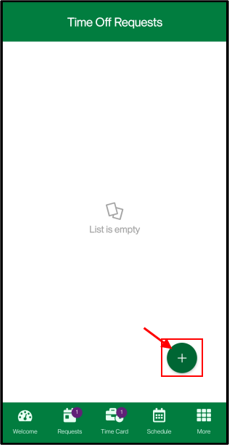
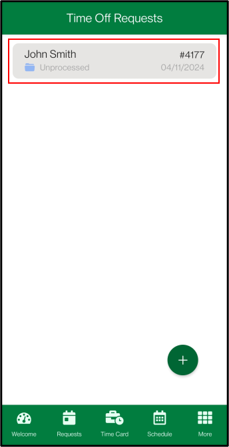
Navigate to Time Off Requests.
Tap on New Request.
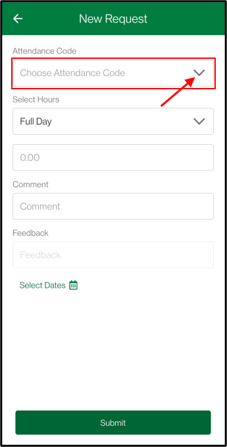
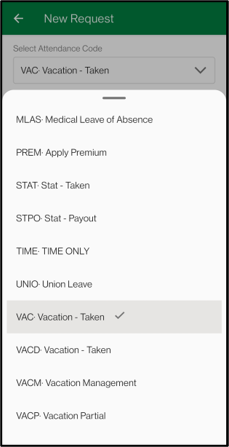
Select the Attendance Code you want to request.
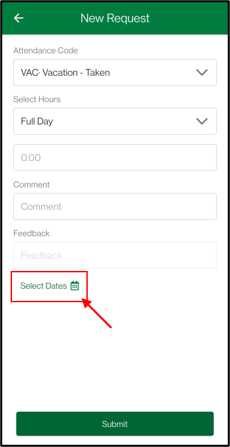
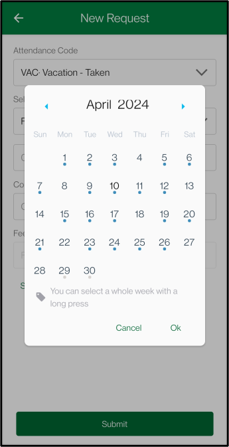
▪Tap on Select Dates. ▪Tap on each day you wish to request time off. You can tap and hold to select an entire week. Generally used if your facility follows OESA rules for vacation. Dates where you are scheduled for a shift are shown with a blue dot. Dates with a grey dot show future Master Schedules. If dates were selected by mistake, you can deselect them by tapping (or holding for weeks) on the date again.
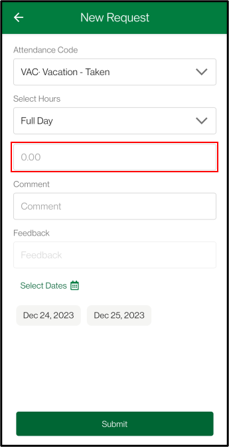
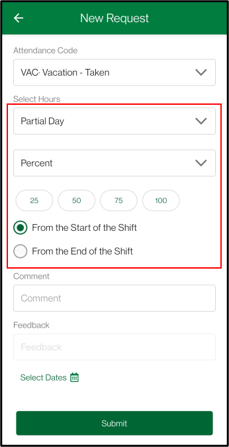
▪Enter a Comment if applicable. ▪Select either a full day or a partial day off. If your selected dates do not have a shift, you will be required to enter the number of hours for the request. These hours are per selected day. If you are requesting a partial day, you can change from Full Day to Partial. Partial day requests require shifts on all the selected dates. ▪Tap on the Save button.
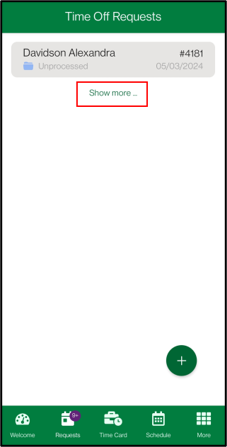
To review old requests, there is a Show More button that can be clicked at the bottom of the request list. Clicking on the button the first time will expand the list to show all requests in the current year.
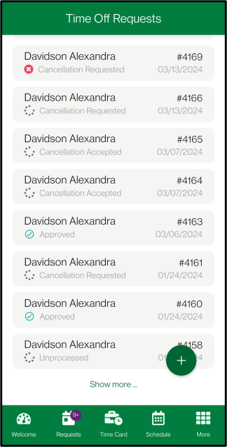
Clicking on the button a second time will show the requests from the previous year. Each additional click on the button will continue to show the previous year. Note that any unprocessed requests that contain dates in the future will still appear when viewing previous requests.
You can pull downwards from the top of the list to refresh and revert back to normal view of the request list.
Approved Requests
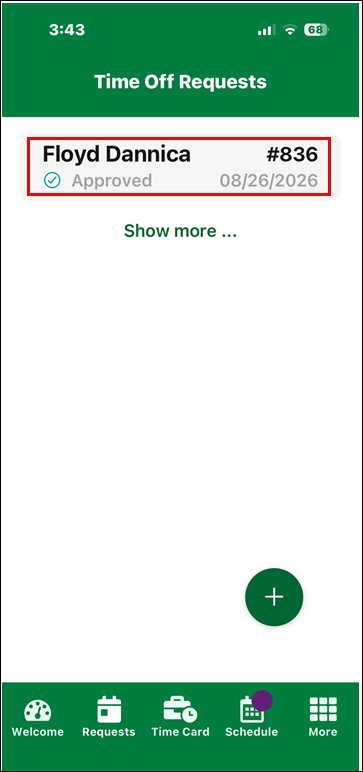
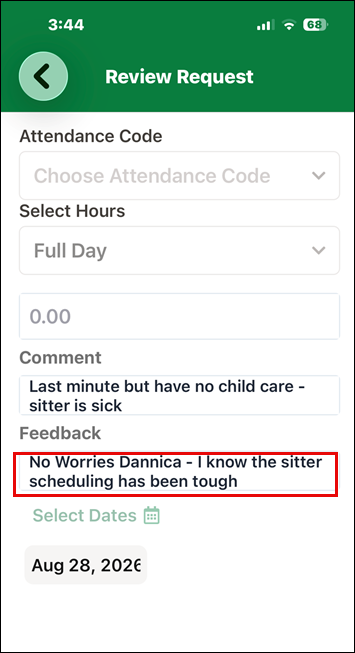
Approved requests appear as follows (left). Click on the request to see employee comments and manager feedback (right).
Editing Time Off Requests
Navigate to the Time Off Requests menu.
Tap on the submitted Time Off Request that you want to adjust.
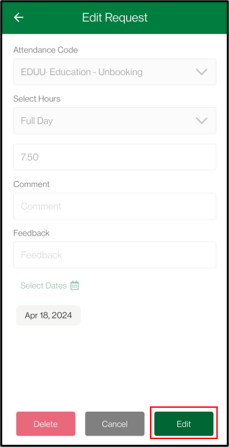
Tap on the Edit button.
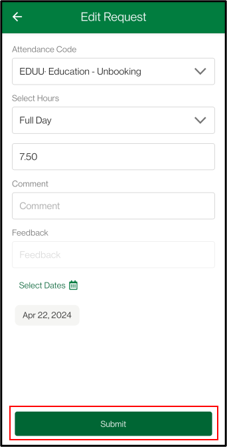
Change the details of the request as required. Tap on Submit.
The Delete option will remove the request as well as any history of that request. Approved requests cannot be deleted. The Cancel option is to notify your manager that you no longer want to request this time off, but the request has already been processed.
|