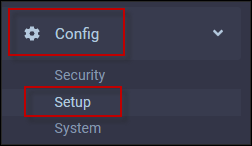
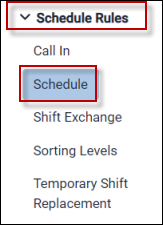
Navigate to Schedule Rules as follows:
▪Config
▪Setup
▪System Rules
▪Schedule Rules
▪Schedule

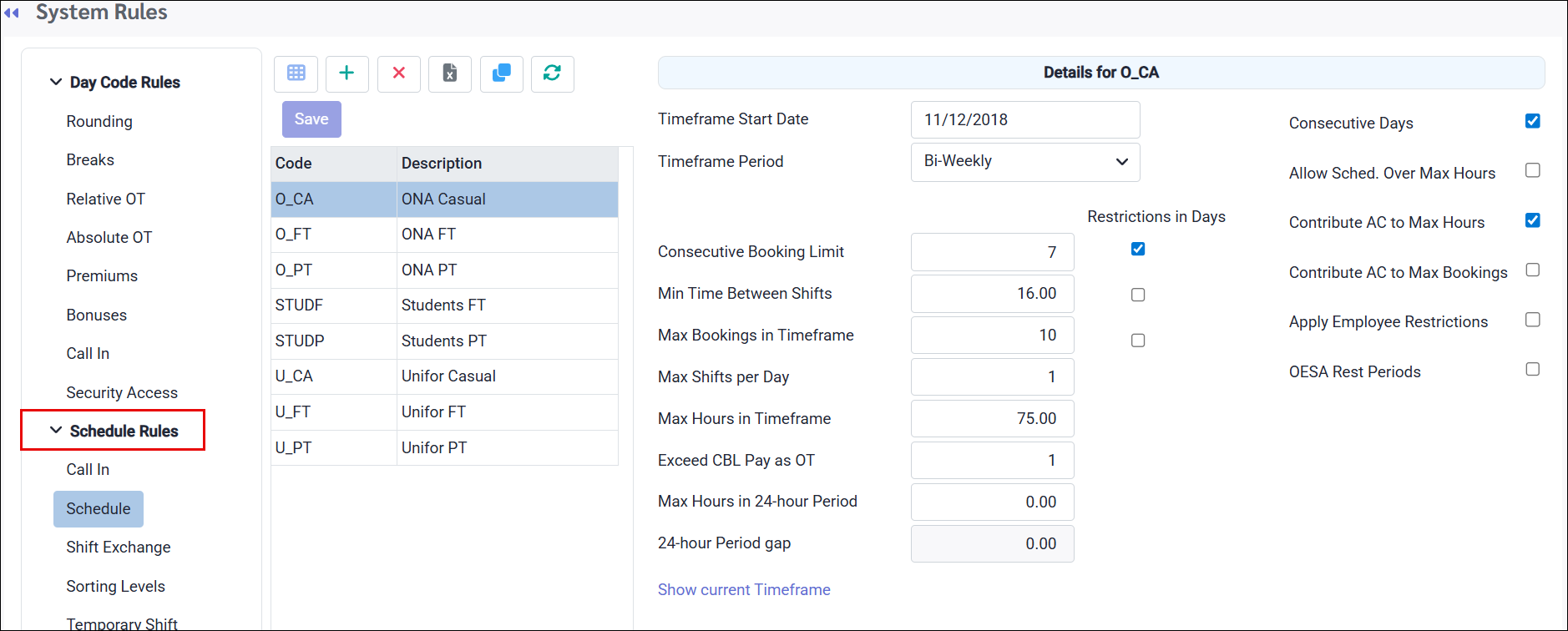
This section defines the system-wide default schedule rules used for validation throughout the application. These rules apply whenever no override rules are configured and are typically organized by union and employment type (e.g., full-time, part-time). Managers granted the appropriate security access may override these rules when scheduling employees, though a warning will be displayed indicating which rule or rules are being violated.
To create a new schedule rule:
▪Click on the plus symbol (+) or clone an existing, similar rule using the Clone icon (shown above). ▪Enter a code for your new rule. ▪Enter a description. ▪Complete the remaining fields as required. See descriptions below. ▪Click Save.
Timeframe Start Date The date on which the scheduling time frame begins, for your selected Timeframe Period (below).
Timeframe Period The length of the scheduling time frame. Options include weekly, bi-weekly, monthly, four (4) weeks, or six (6) weeks.
Consecutive Booking Limit The maximum number of consecutive shifts an employee can be scheduled before a break is required.
Restrictions in Days Specifies that the applicable rule, such as the Consecutive Booking Limit, is measured in days. Both this option and Consecutive Days should be applied.
Min Time Between Shifts The minimum required gap between the end of one shift and the start of the next.
Max Bookings in Timeframe The maximum number of shifts an employee can be scheduled within the defined time frame. Bookings refers to the number of shifts regardless of shift length.
Max Shifts per Day The maximum number of shifts an employee can be scheduled in a single day.
Max Hours in Timeframe The maximum number of hours an employee can be scheduled within the defined time frame.
Exceed CBL Pay as OT When enabled, any hours worked beyond the consecutive booking limit will be paid at the defined overtime rate.
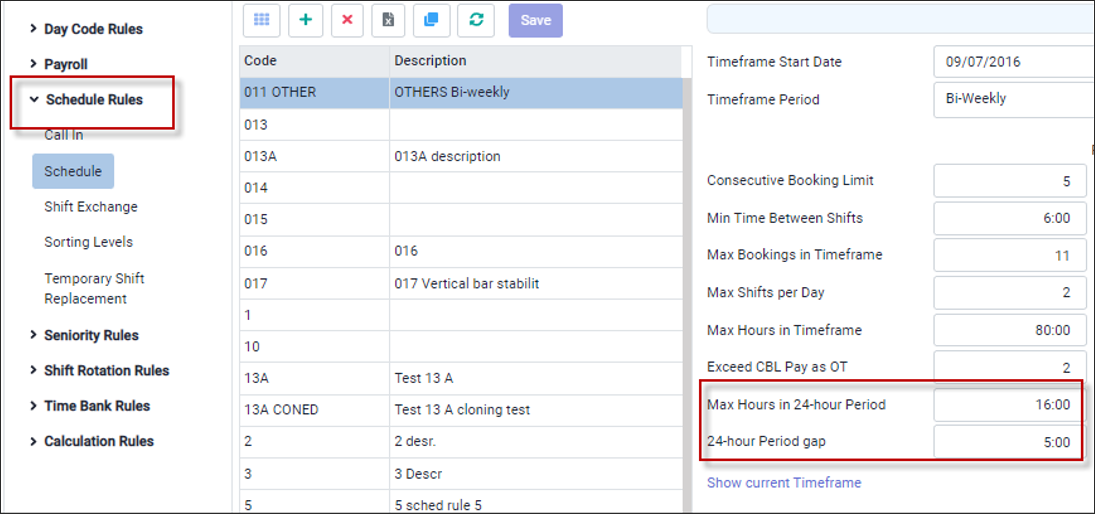
Max Hours in 24-hour Period Please see Maximum Hours Scheduled Daily.
24-hour Period gap Please see Maximum Hours Scheduled Daily.
Show Current Timeframe When enabled, displays the current active time frame in the scheduling view.
Consecutive Days Specifies that the applicable rule, such as the Consecutive Booking Limit, is measured in days. Both this option and Restriction in Day should be applied.
Allow Scheduling Over Max Hours When enabled, permits scheduling beyond the defined maximum hours. Enabling this option is not recommended, as it bypasses a key scheduling safeguard.
Contribute AC to Max Hours When enabled, hours associated with the specified Attendance Code will count toward the employee's maximum hours within a scheduled time frame.
Contribute AC to Max Bookings When enabled, the specified Attendance Code will count as a shift toward the maximum number of bookings within a scheduled time frame.
OESA Rest Periods Defines the mandatory rest periods as outlined under the Ontario Employment Standards Act, ensuring scheduled shifts remain compliant with legislated requirements.
|
This option allows you to set a maximum number of scheduled hours daily (within a 24 hour period). If the time between shifts is less that the Gap threshold, the system will validate the number of hours in the Max Hours in 24-hour Period field.
The 24-hour period is defined based on the shift start and end times. The system validates 24 hours in both directions and considers the maximum hours configured, as consecutive hours.
▪Shift start time and 24 hours ahead. ▪Shift end time and 24 hours behind.
Example: If you try to book a shift 6AM-2PM on July 15th, the system is validating the periods:
▪July 15th 6AM - July 16th 6AM. ▪July 14th 2PM - July 15th 2PM.
If either one of the two periods has more hours than the threshold, the employee is breaking the rule.
The system will always enforce the 24-hour period gap rule, even if it is configured as zero. However, it will ignore the Max Hours in 24-Hour Period rule if the gap between the shift being filled and any scheduled shifts meets or exceeds the configured threshold (e.g., 5 hours). This threshold defines how long a break must be for the daily maximum hours limit to no longer apply. A recommended setting for this rule is three (3) to four (4) hours.
Example: An employee is scheduled for a shift from 6:00 AM to 2:00 PM on the 10th. The break threshold is set to five hours. You attempt to book the same employee for a second shift from 6:00 PM to 6:00 AM (ending on the 11th). Since the gap between the two shifts is only four hours, which is less than the configured threshold, the system will prevent the booking due to the Max Hours in 24-Hour Period rule. If the threshold is instead set to three hours, the four-hour gap would meet the requirement. In this case, the system will ignore the 16-hour rule and allow the second shift to be booked. |