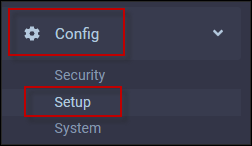
▪Select the Config menu.
▪Select the Setup menu.
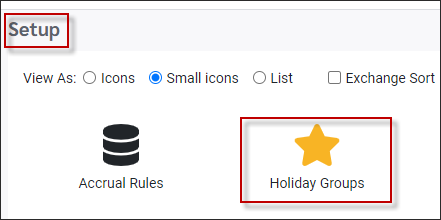
▪Select Holiday Groups.
Click on the Holiday Group for which you would like to configure the Options. Click on the Holiday Rules tab. The Options section is on the right-hand side:
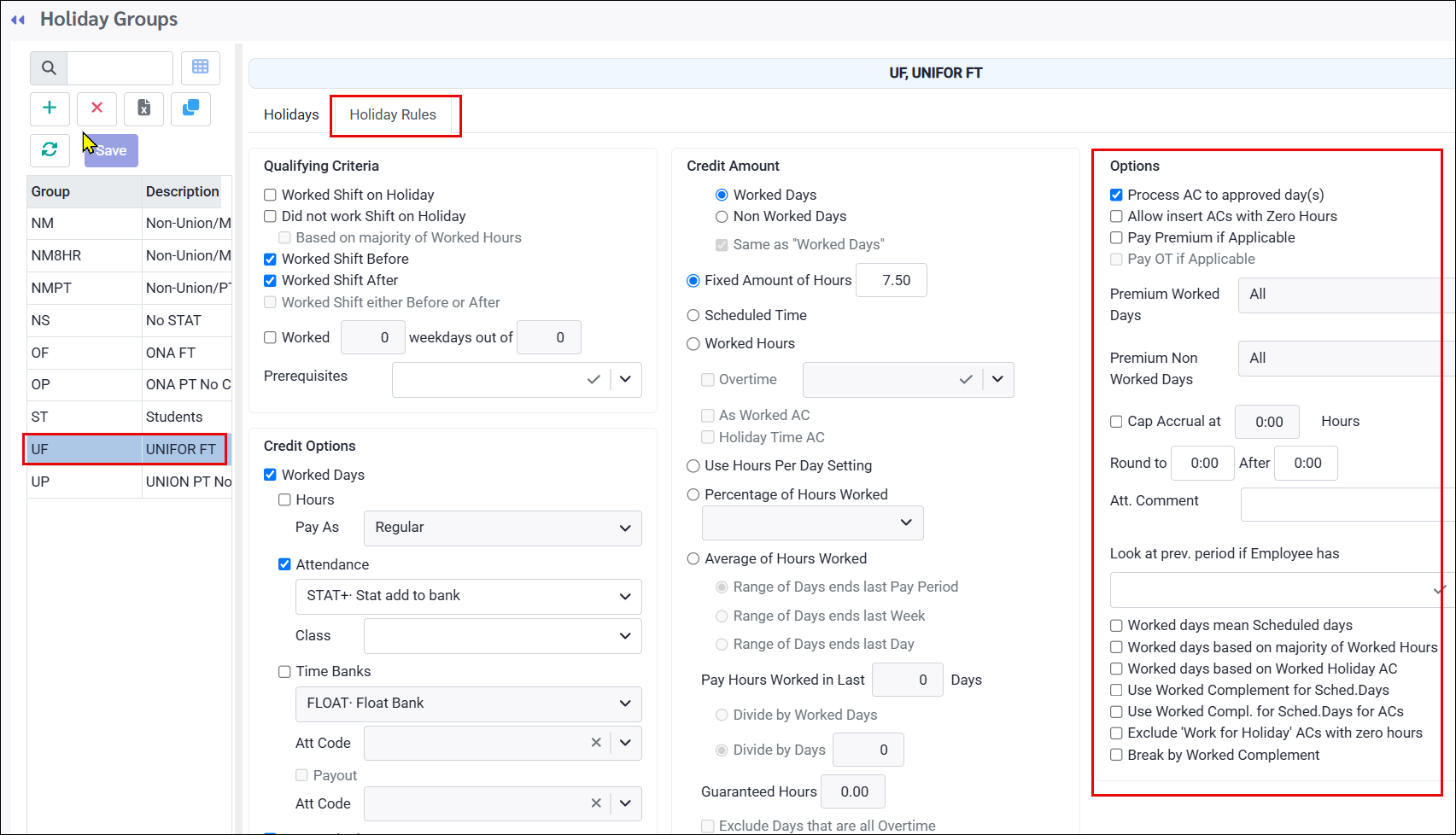
Holiday Rule Options
Process AC to approved day(s)
This option allows the hours credit to be added to the Time Card even when the day has already been approved.
Allow insert ACs with Zero Hours
When enabled, Attendance Codes will accrue holiday credit even if zero hours are associated with the accrual.
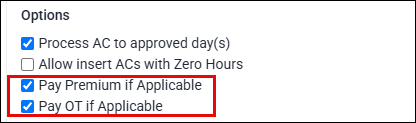
Pay Premium if Applicable
Enable when using the Assign Hours feature for advance payroll. This ensures any premiums associated with the pre-populated hours are applied automatically.
Pay OT if Applicable
Enable when using the Assign Hours feature for advance payroll. This ensures any overtime associated with the pre-populated hours are applied automatically.
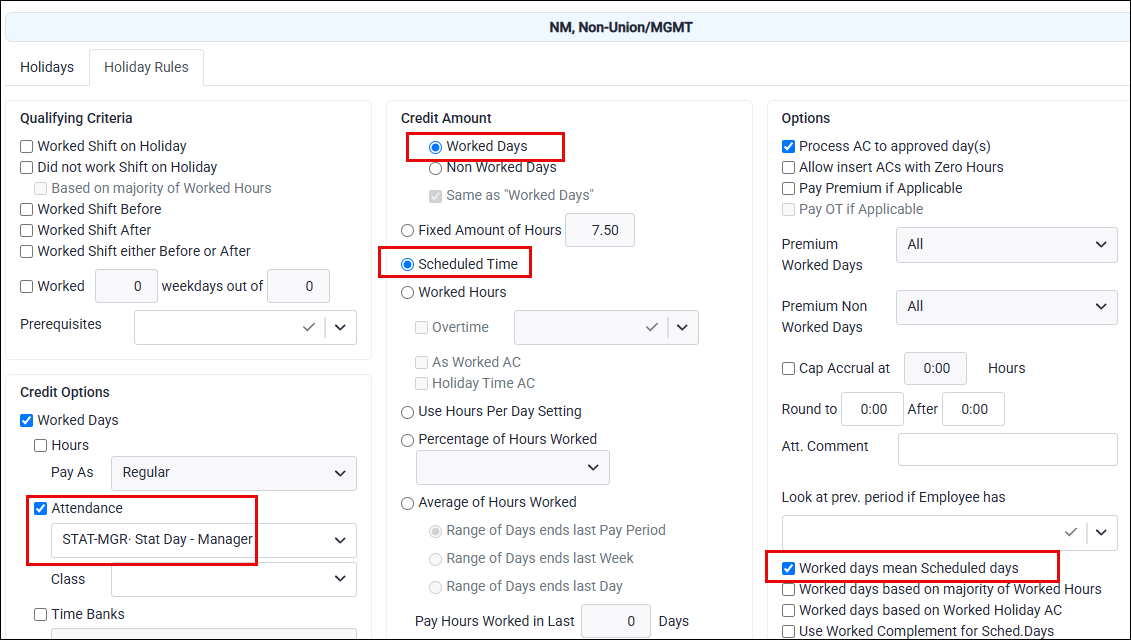
Worked days means Scheduled Days
When disabled, the total hours on the Time Card plus any Attendance Codes marked as Work For Holiday must meet the Day Code Minimum Day Time threshold to count as a worked day.
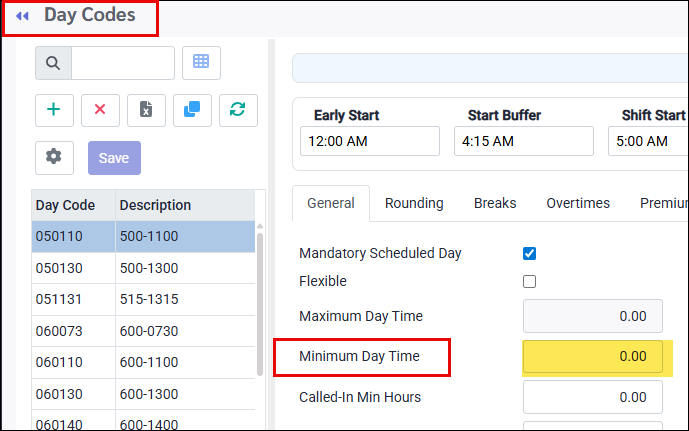
When enabled, scheduled days automatically count as worked days. Unscheduled days count toward the holiday calculation if they contain Work For Holiday Attendance Codes with hours greater than zero.
This option may be used to run the holiday calculation ahead of time for advance payroll, with the system looking at the Active Schedule hours ahead of time instead of the Time Card hours after the day has already been worked.
This option may also be used for non-union auto-punch employees who must be paid for the day as a holiday, not a regular day. In this case, the calculation is set up to credit the scheduled time in advance to an Attendance Code that unbooks the shift and is mapped to the holiday earnings code in payroll.
This method minimizes Time Card corrections, since auto-punch is disabled for that day and no regular hours are generated that would otherwise need to be manually removed.
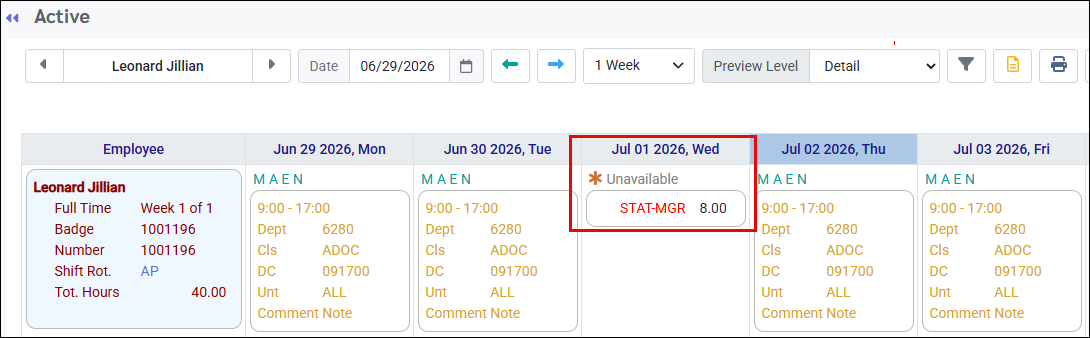
For example, Jillian is a manager with a regular 9-to-5 schedule who is set to auto-punch to schedule.
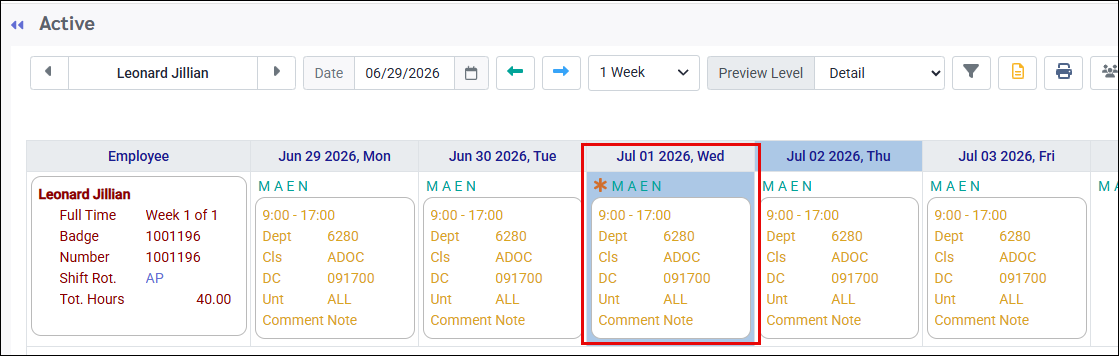
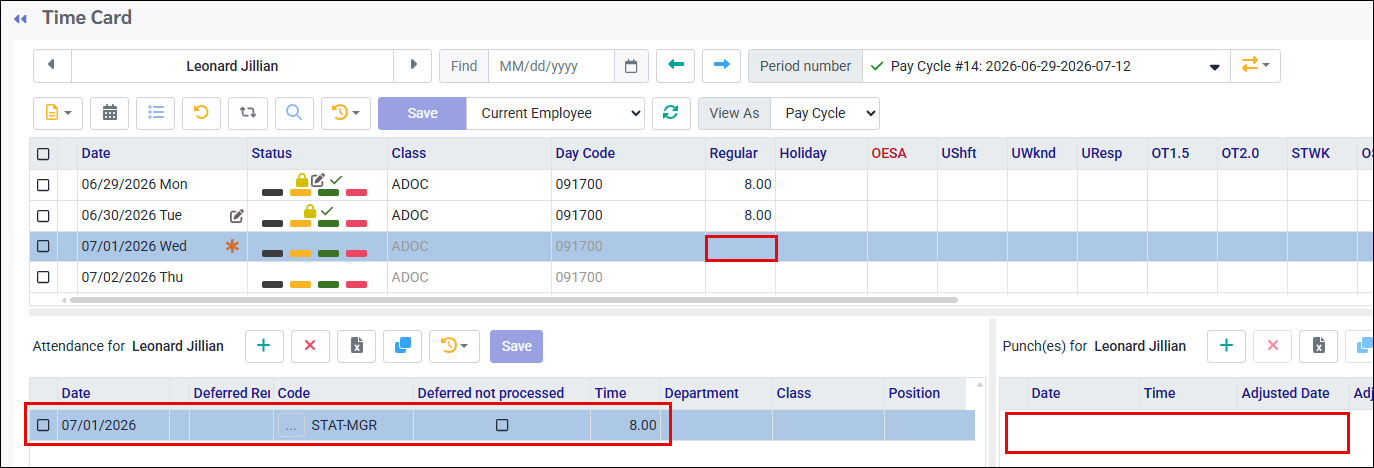
Using the Worked days means Scheduled days setting along with an Attendance Code that unbooks the shift (STAT-MGR), running the statutory holiday process in advance will prevent auto-punches and therefore regular hours from appearing on the Time Card.
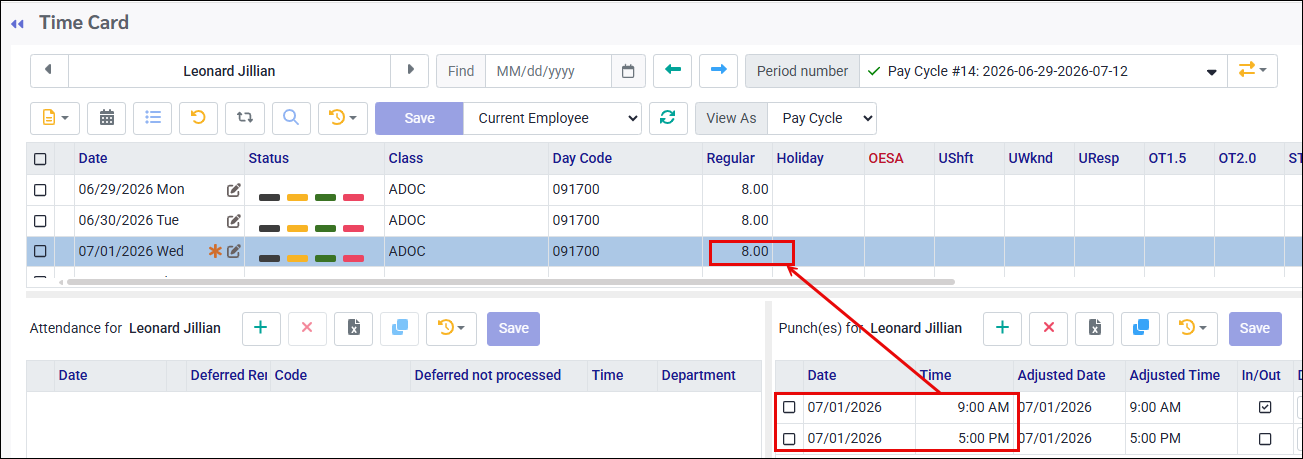
Example of Time Card without the unbooking process described above:
Example of Schedule and Time Card using the unbooking process described above:
The code, STAT-MGR, unbooked the shift so it will not generate automatic punches.
No auto-punches appear in the punch section, so no regular hours are generated. The holiday code, STAT-MGR, is mapped to payroll, ensuring the manager is paid as a statutory holiday rather than a regular day.
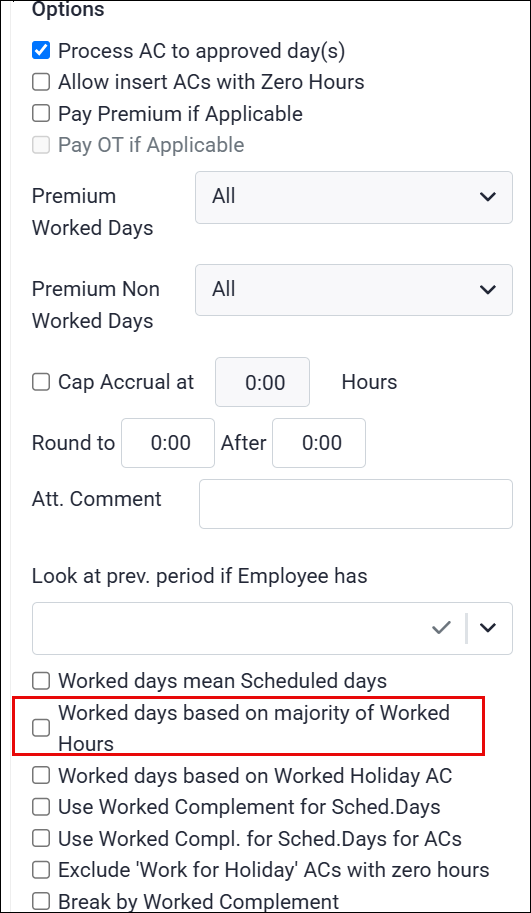
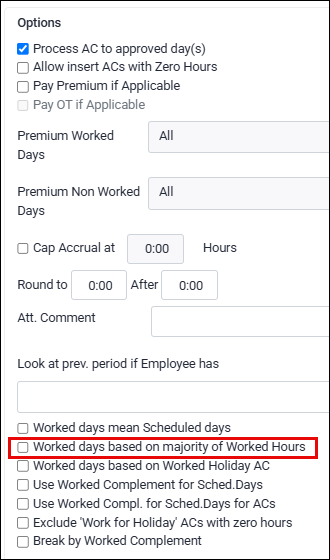
Worked days based on Majority of Worked Hours
This setting tells the Credit Options and Credit Amount sections whether a shift crossing midnight is worked or not worked, based on where the majority of its hours fall relative to the statutory holiday.
This is primarily important when the rules differ depending on whether the employee works the statutory holiday or not.
Either this option or the previous option, Worked days means Scheduled days, should be used, but not both together, as this logic replaces the previous one.
Example 1 - Majority of Hours NOT worked on the Statutory Holiday:
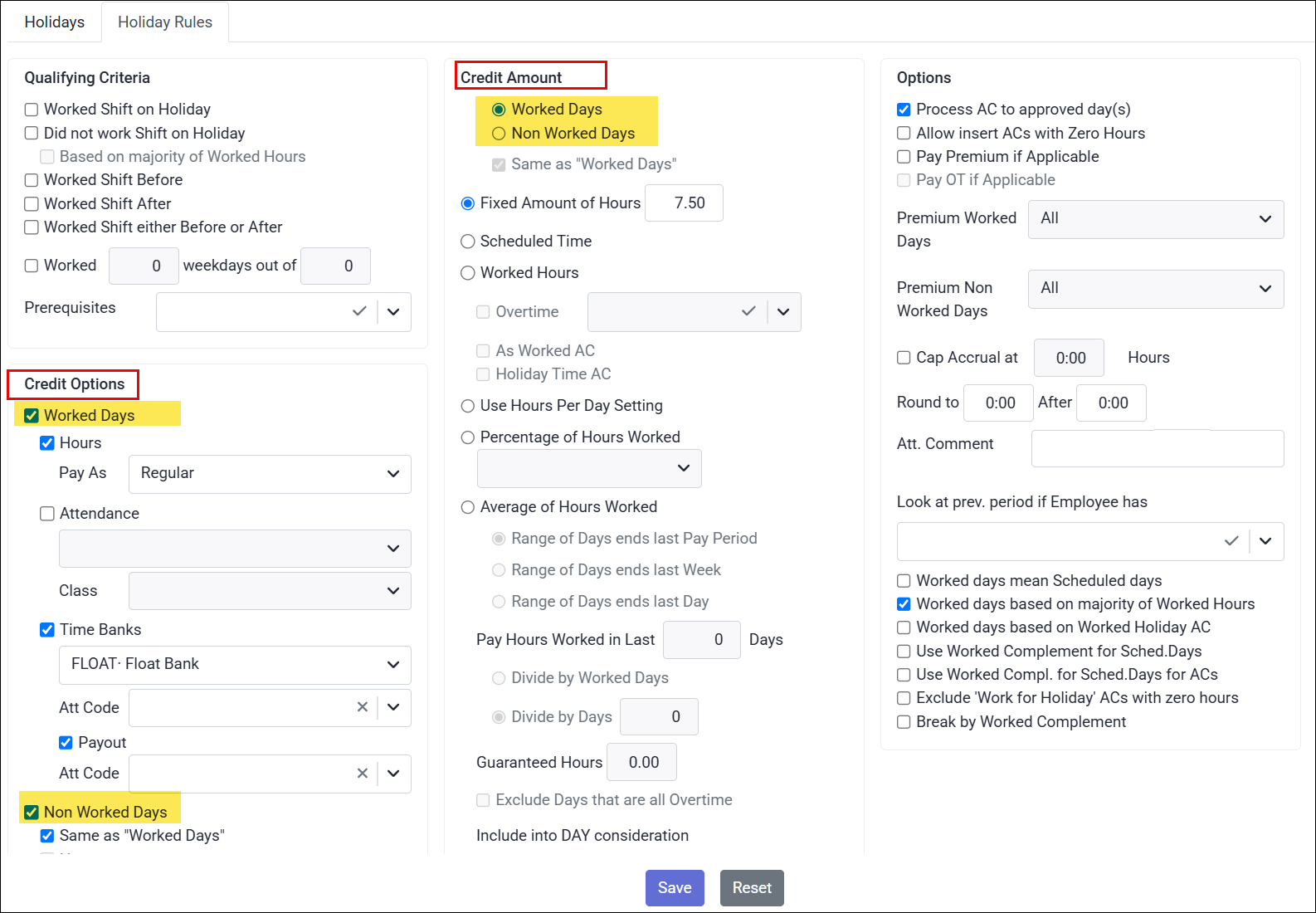
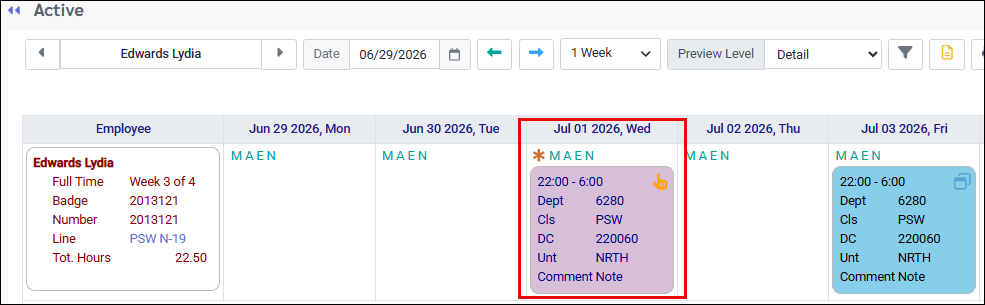
Lydia is scheduled to work on the holiday starting at 10pm and ending at 6am with the majority of her hours falling on the day AFTER the holiday. Only10pm to midnight falls on the holiday itself.
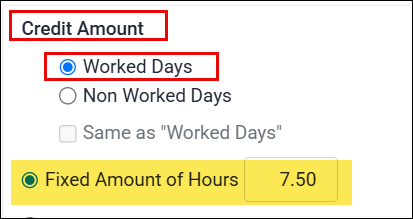
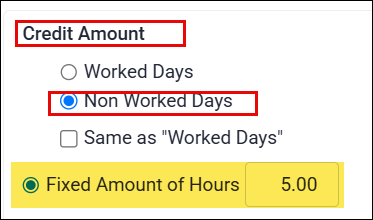
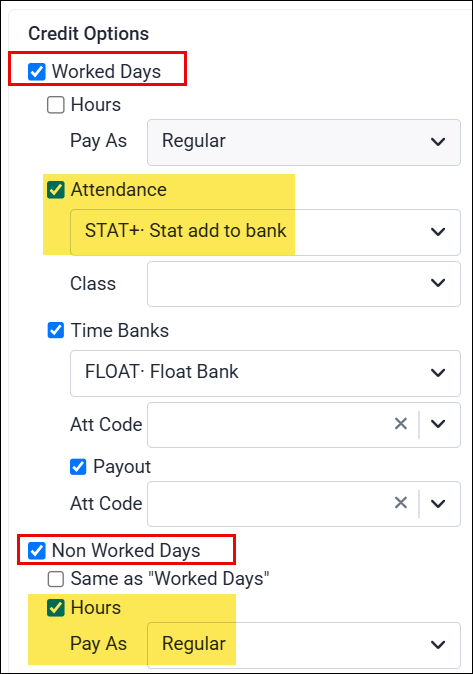
The holiday rule is set up to credit Lydia 7.5 hours to her bank using the code STAT+ if she works the holiday, or pay out 5 hours if she does not work the holiday:
Lydia punched in at 10pm on July 1st and out at 6am on July 2nd:
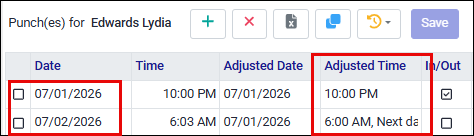
Notice that Lydia received 5.00 in the Holiday column as per the above image, since the majority of her hours fell outside the statutory holiday, meaning she is considered not to have worked it.
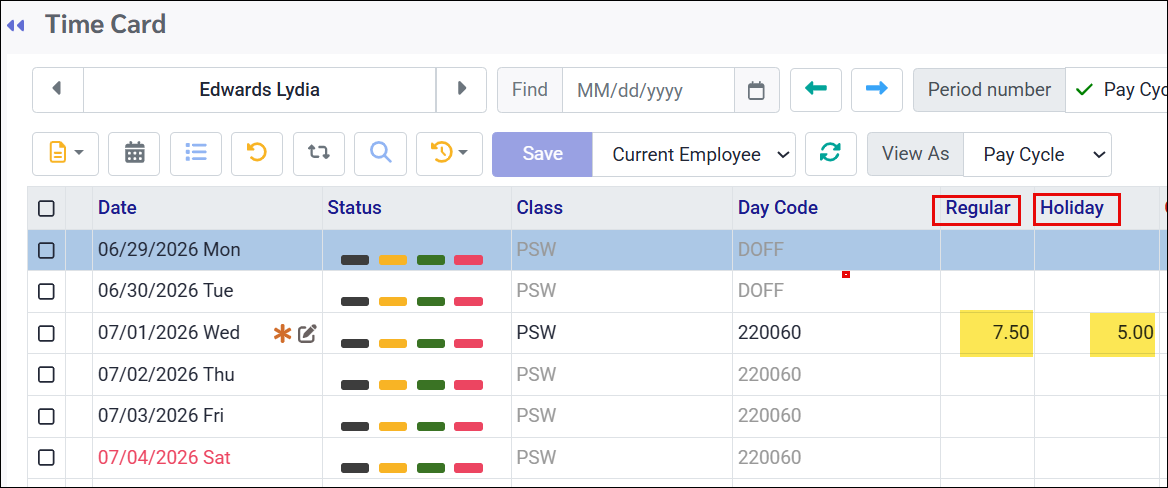
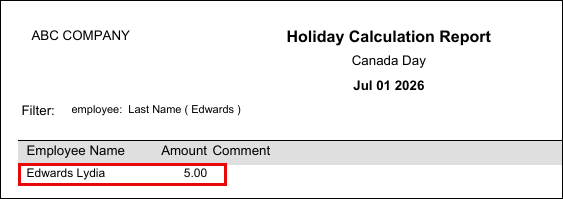
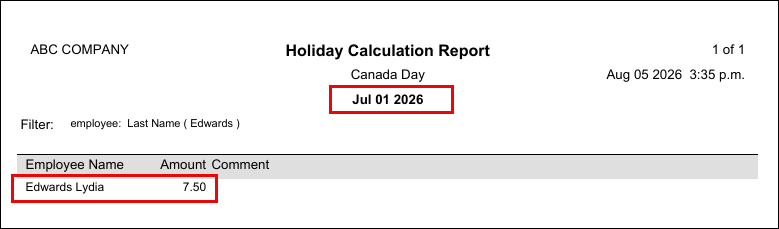
With the Worked days based on majority of Worked Hours setting off, the outcome flips. Hours on the statutory holiday alone are enough for the system to consider the day worked, regardless of where most hours fall, triggering the worked rule for stat holiday (benefit) pay instead of the non-worked rule. The worked holiday rule providing 7.5 hours to the employee's bank will apply in this case.
How the worked hours are paid, regular or overtime, is separate, governed by the Shift Rotation and Day Code setup, not the Worked days based on majority of Worked Hours setting.
In short, this tick box decides only whether the day counts as worked or non-worked, and therefore which stat pay (benefit) rule applies, not how the worked hours are paid.
Example 2 - Majority of Hours worked on the Statutory Holiday:
Lydia is scheduled to work the day before the holiday starting at 10pm and ending at 6am with the majority of her hours falling on the holiday itself (midnight to 6am).
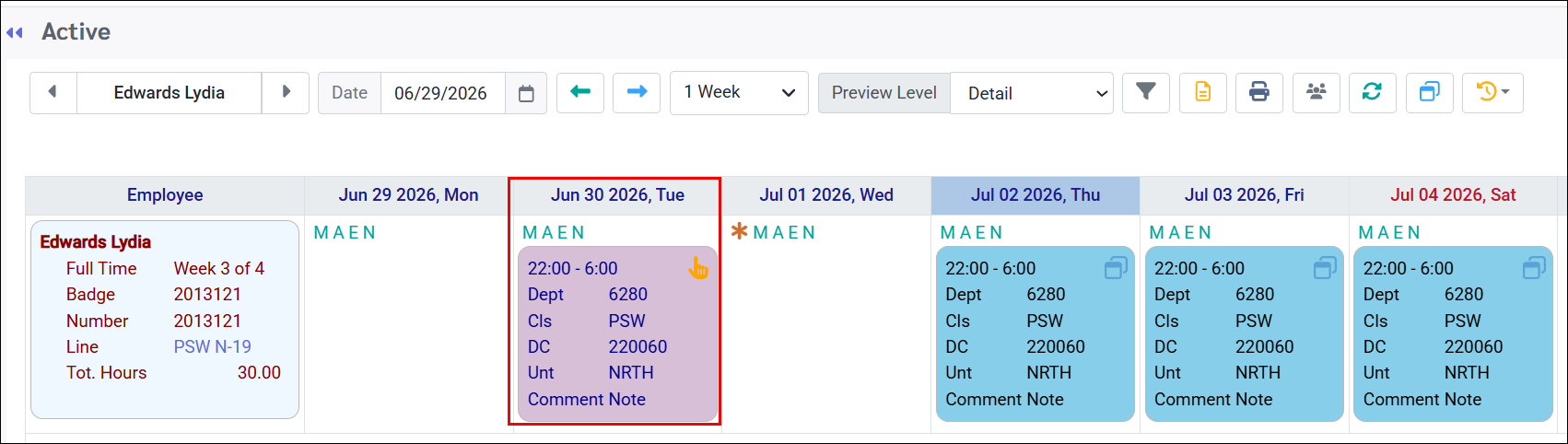
Lydia punched in at 10pm on June 30th and out at 6am on July 1st, with the same holiday pay rule applied.
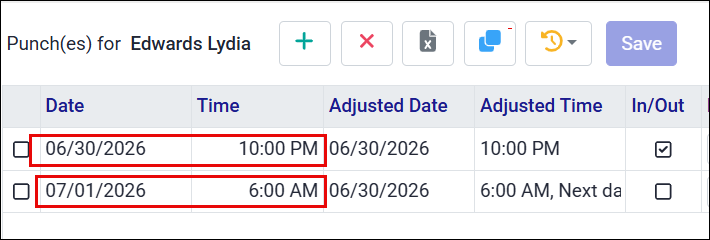
Please note that the tick box Worked days based on majority of Worked Hours only applies when the hours appear on the holiday itself. In the example above, the system will consider the holiday (Canada Day) a non-worked day, whether this option is ticked or not, since the punches, and therefore the hours, are set to appear on June 30th, not July 1st.
Worked Days based on Worked Holiday AC
If the previous condition (Worked Days Based on Majority of Hours Worked) is not met, the system then checks whether an Attendance Code configured as Worked for Holiday exists for that day; if not, the day is counted as non-worked. The code must fall on the holiday itself for the rule to validate and apply it correctly.
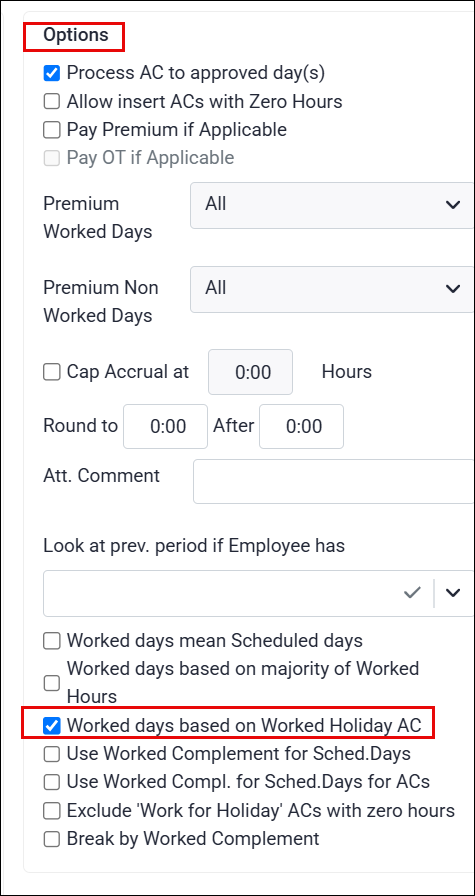
If enabled, the system will only count the Attendance Code as a worked day if the previous check box, Worked Days Based on Majority of Worked Hours, is not also enabled. If that check box is enabled, the system will treat the day as non-worked regardless, and apply the non-worked rule.
Example - Worked Holiday AC - Enabled:
Using the previous holiday rule configuration, Noelle's holiday group would credit 7.5 hours to her bank, using the code STAT+ if she works the holiday and 5 hours paid out if she does not work the holiday:
Noelle has taken a float day on July 1st, Canada Day.
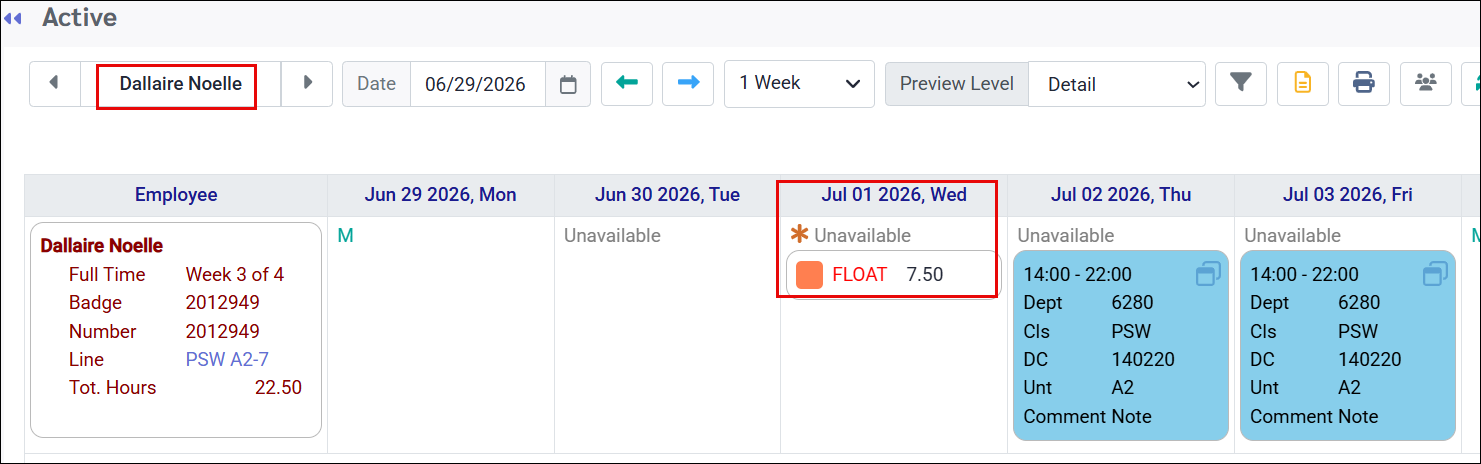
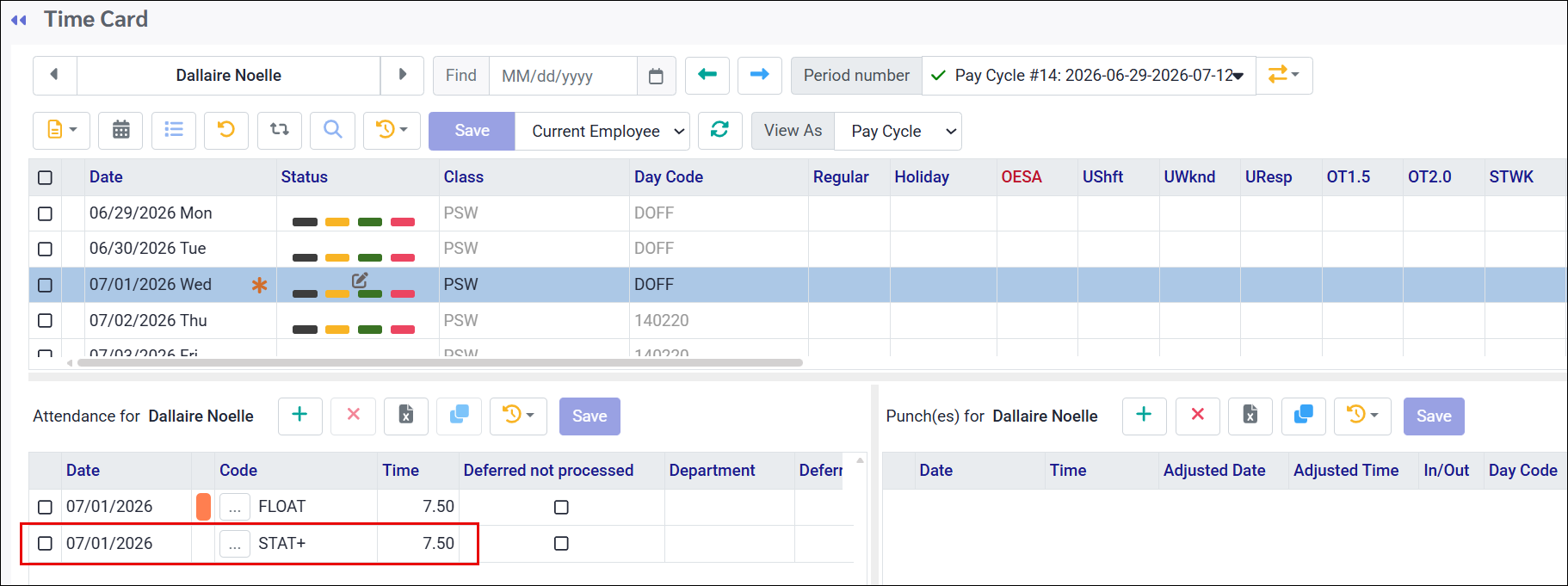
The system would normally consider this a day off and the non-worked day rule would apply. However, since the rule Worked Days based on Worked Holiday AC is applied, the system will count this code towards a worked day, and the worked-day rule will apply.
Noelle was credited for the holiday as if she worked it, applying the worked-day rule:
Example 2 - Worked Holiday AC - Disabled:
Please note that the current system functionality will still consider the day a worked day when this setting is disabled. The Work for Holiday setting under the Attendance Code configuration pulls the non-worked rule, not this tick box.
Use Worked Complement for Sched. Days
This option inserts hours using the worked (scheduled) complement, department and / or class, instead of the employee's home complement information. This option may be used if the payroll mappings require complement information to be imported, and the system should pick up the worked complement data for the stat holiday instead of the home data.
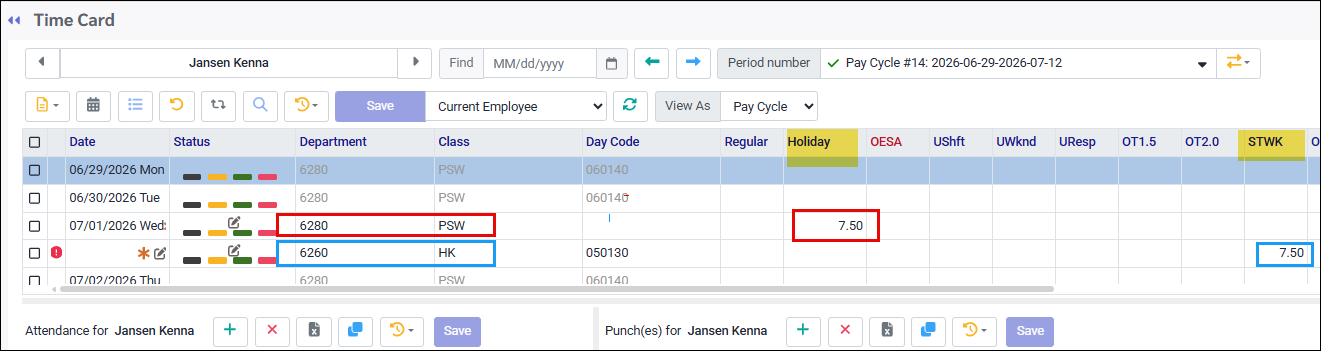
Kenna's home department is 6280 (nursing) and her home class is PSW. On July 1st, Canada Day, Kenna worked in department 6260 (housekeeping) as a housekeeper (HK class):
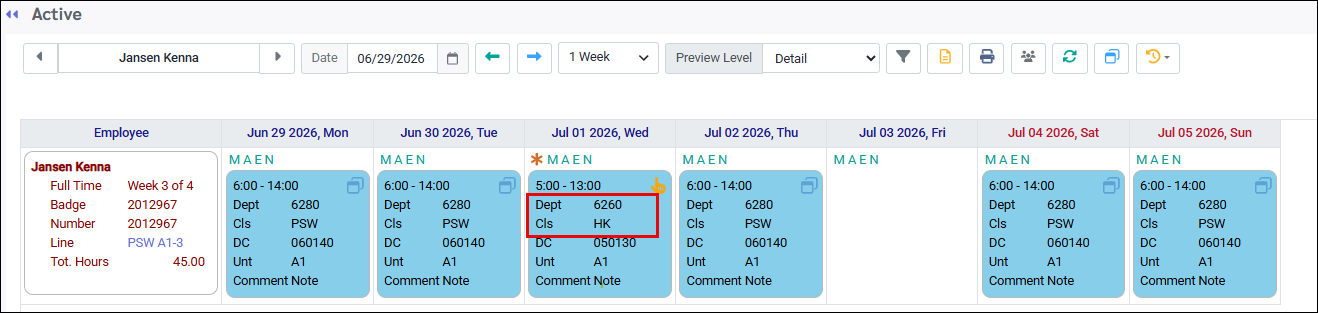
Her statutory holiday rule is configured to provide 7.5 hours to the Holiday field of the Time Card.
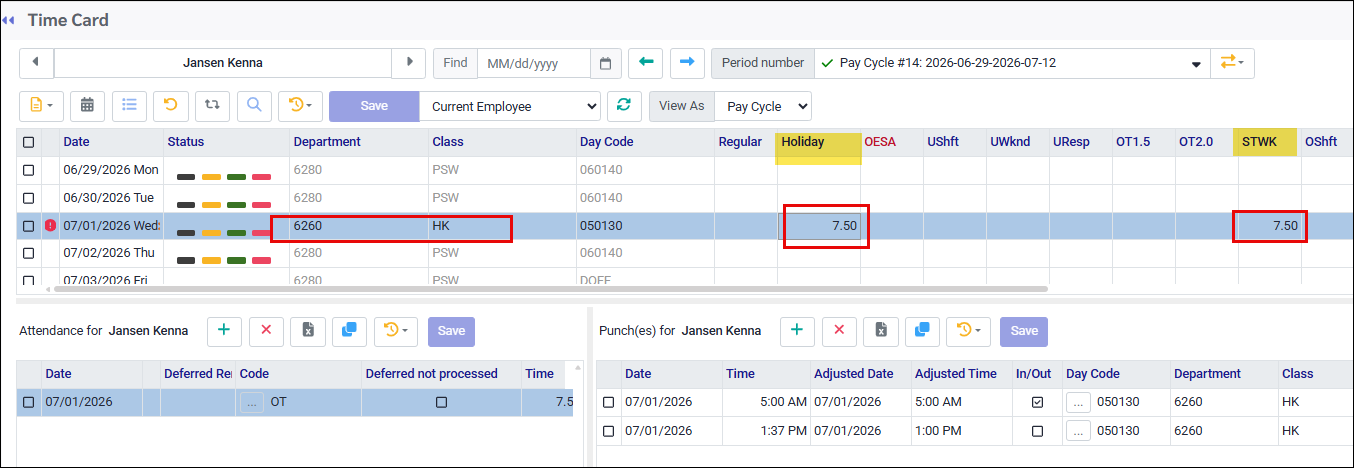
Example 1 - Use Worked Complement for Sched. Days - Enabled
Kenna receives 7.5 hours credited to her worked class. Notice that both her worked holiday and holiday pay hours appear on the same row, under her worked department and class, not her home department and class:
Example 2 - Use Worked Complement for Sched. Days - Disabled
Kenna receives 7.5 hours of holiday pay credited to her home department and class (red) while her worked holiday hours appear under her worked department and class (blue), creating two rows:
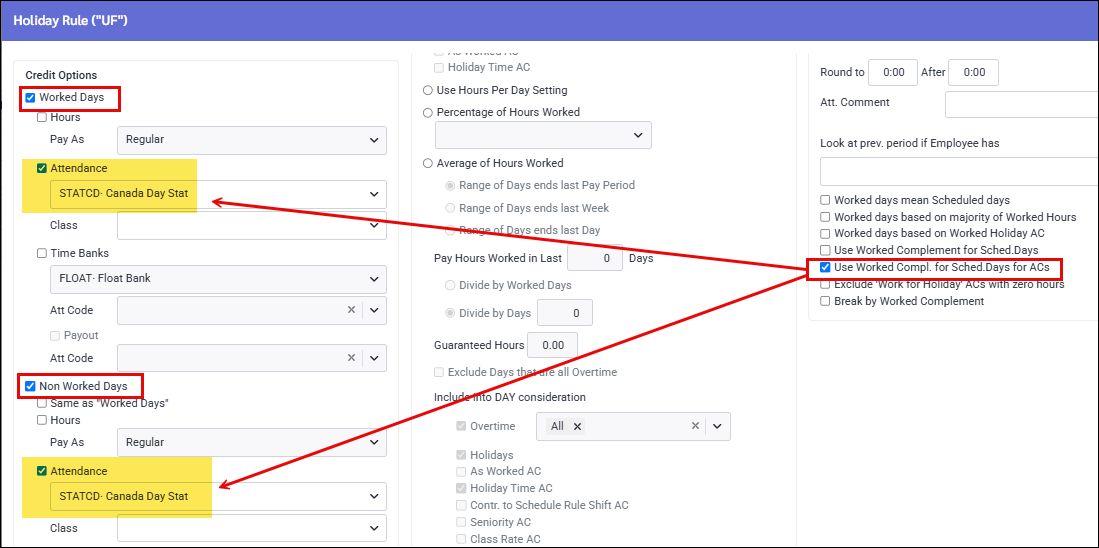
Use Worked Comp. for Sched. Days for ACs
This option inserts Attendance Code hours with worked (scheduled) complements (department and / or class information) instead of the employee's home department / class (complement) information, where codes are used for either Worked Days or Non Worked Days.
This option may be used if the payroll mappings require the Complement information to be imported, and the system should pick up the worked complement data for the statutory holiday instead of the home data.
Nick's home department is 6280 (nursing) and his home class is PSW. On July 1st, Canada Day, Nick worked in department 6250 as an activity aide (ACTAID).
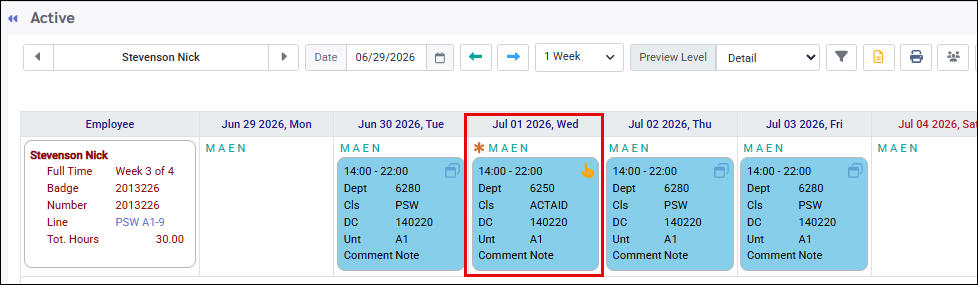
Nick's holiday rule provides 7.5 hours directly to a paid statutory holiday Attendance Code, specific to the current holiday.
Example 1 - Use Worked Compl. for Sched. Days for ACs - Enabled
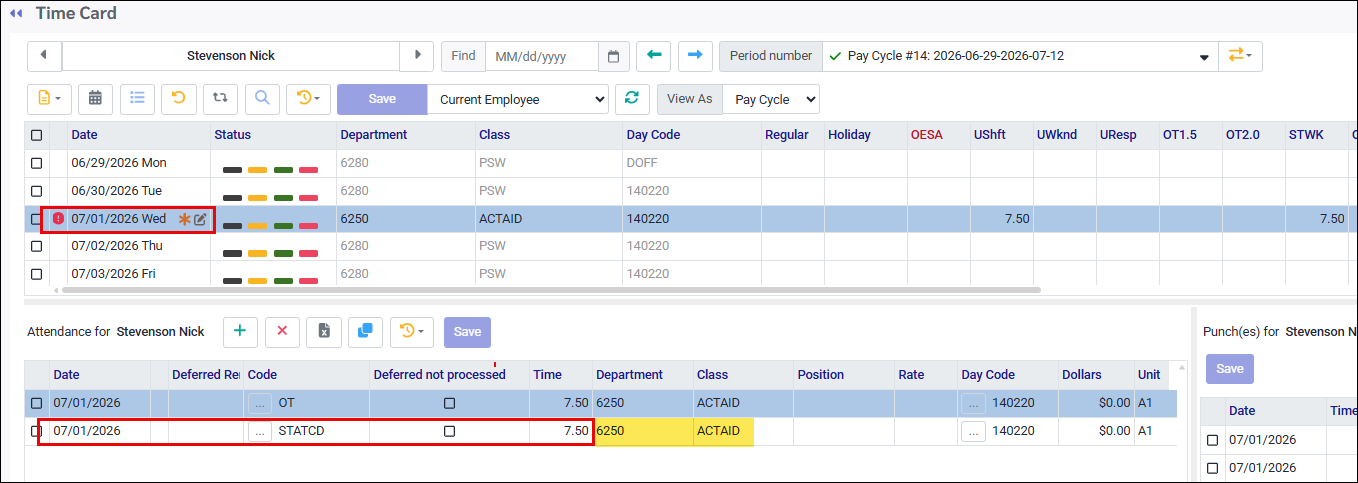
Nick's holiday pay hours, credited to code STATCD, specify his worked department and class complement information. As a result, the hours section only needs to show one row, since the worked and holiday pay hours share the same complement.
Example 2 - Use Worked Compl. for Sched. Days for ACs - Disabled
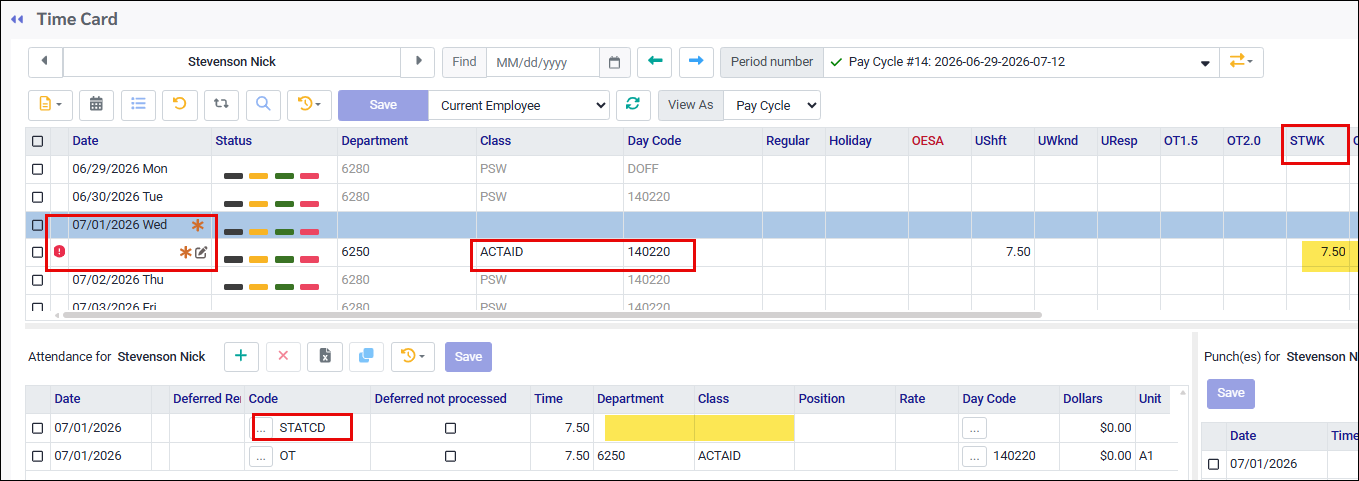
In this case, the holiday pay hours, credited to code STATCD, leave the department and class fields blank, indicating the employee's home complement information, while the worked hours specify the worked department and class complement information, resulting in two rows in the hours section, since this information differs.
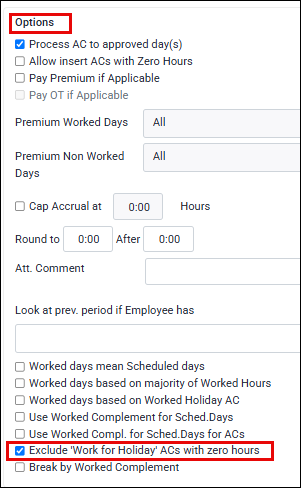
Exclude 'Work for Holiday' ACs with zero hours
When ticked, the system excludes Work for Holiday Attendance Codes that have 0 hours from counting towards the Qualifying Criteria.
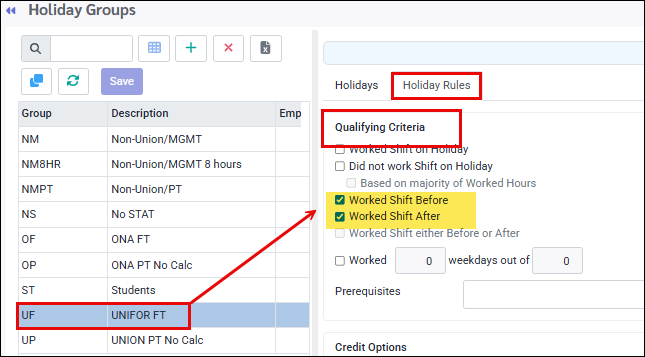
Marty's Statutory Holiday Qualifying Criteria rule requires him to work the shift before and after the holiday to qualify for holiday pay. When he qualifies, the system will add 7.5 hours to his holiday bank using the STAT+ code.
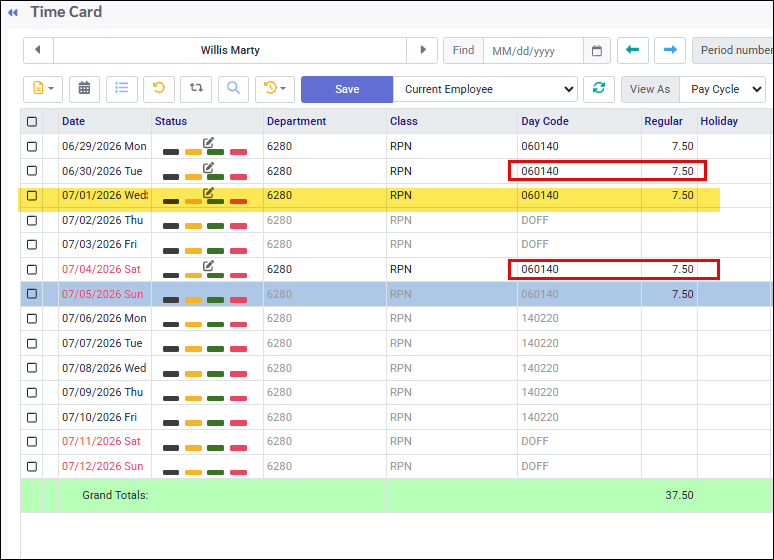
For the July 1st Canada Day holiday, Marty has worked the shift before and after the holiday and therefore qualifies for holiday pay.
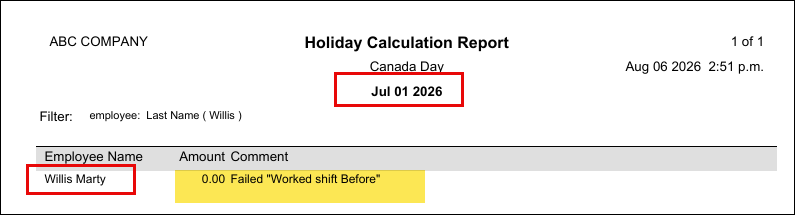
Example 1 - Exclude 'Work for Holiday' ACs with zero hours - Enabled:
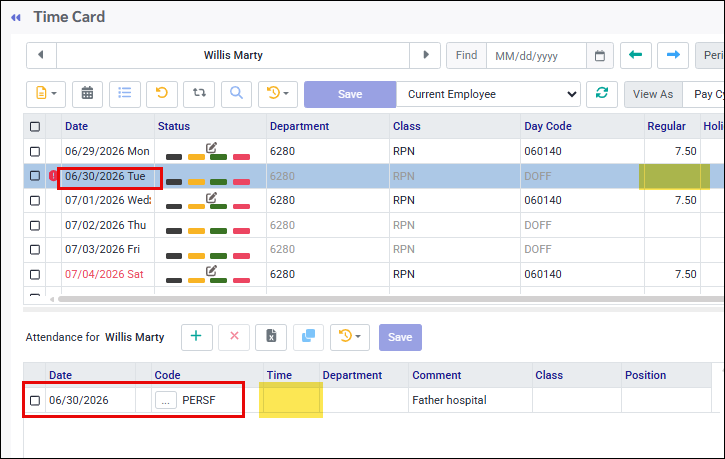
The Attendance Code PERSF (personal family) appears on Marty's Time Card and in this case replaced his June 30th shift.
This code is configured so that it does not disqualify employees from receiving holiday pay if it appears in place of the scheduled shift before or after the holiday.
The manager has added this code with no hours:
When the Holiday Calculation is run for July 1st, Marty is disqualified from receiving holiday pay:
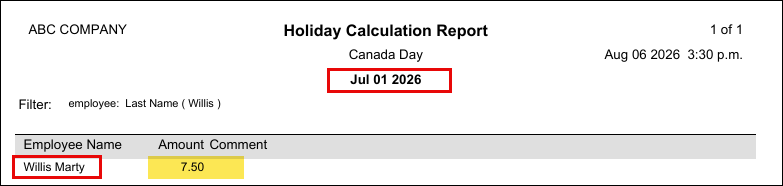
Example 2 - Exclude 'Work for Holiday' ACs with zero hours - Disabled:
This time, Marty will qualify for holiday pay. The system will still accept this code as a replacement for Marty's shift:
Break by Worked Complement
The holiday hours that are credited to the employee will be split on the Time Card by percentage to different units based on the worked unit (worked complement). This is a custom feature.