Call in rules are configured to determine the priority order of employees for call-ins to fill shifts. The order may be configured by seniority hours, hire date, seniority date, the number of hours worked in a pay period etc.
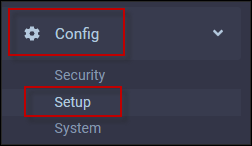
Navigate to Call In as follows:
▪Config
▪Setup
▪System Rules
▪Schedule Rules
▪Call In


The following menu will appear. To create a new rule select the plus symbol (+):

A new blank line will appear at the bottom of the grid. Add a Code and Description and click Save.

General Tab
On the General tab, select the sorting criteria for this rule.

▪Click on the plus symbol (+) to add.
▪Click in the Criteria window for the drop-down list to select from. You may select multiple levels for the general sorting order (below).
▪Use the up/down arrows on the right to arrange the Criteria order (red arrow box above).
The green arrows (green box above) under the Sort column are used to determine ascending or descending order for each criterion. If the green arrow is pointing down, the order is descending (greatest to least). If the green arrow is pointing up, the order is ascending (least to greatest).
For seniority by hire date, the arrow should pointing up and for seniority by total hours, the arrow should be pointing down as per description on the right (yellow above). |

▪Complete the Timeframe Start Date and Timeframe Period as shown below (red box on right below). For best results, these selections should logically correspond with your pay period and scheduling period.
▪Click Show Current Timeframe to see the current period based on your Timeframe Start Date and Timeframe Period configurations.
▪Complete the Seniority By section if your criteria selection is set to Seniority (lower screenshot).
▪Complete any additional information if applicable. Please note that the Booking Selection Sequence setting may not be required for all Sorting Criteria settings (green below).


Booking Selection Sequence
This option will sort employees by Call In rule seniority order, within their Booking Selection Sequence grouping, By Hours or By Shifts, for the current Timeframe Period (shown above). The Booking Selection Sequence will be reset with each new Timeframe Period.
All configured call responses except Decline (or Auto Decline), including Accept, count toward the Booking Selection Sequence total. In other words, an employee’s Booking Selection Sequence increases when they accept a shift or are placed on the postponed list. If an employee is manually or automatically removed from the postponed list, their Booking Selection Sequence decreases accordingly.
If the Decline response, however, is not configured with the Declined setting enabled, employees who decline a shift will be added to the postponed list and their Booking Selection Sequence will increase. Please see Configuring Call Responses.
Any changes to Master Schedule shifts, including adding a Note, will also increase employees' Booking Selection Sequence count if Count Changes from Master is applied. If multiple changes are made to a master shift, only the first edit, however, will increase the Booking Selection Sequence.

To enable Booking Selection Sequence:
▪Select By Shifts or By Hours as shown above.
▪On the Settings tab, configure the Booking Selection Sequence pattern.
Settings Tab
Booking Selection Sequence
The configuration below displays that after one call (response count By Shift) the employee would rotate as described above. You may also configure this option so that employees would rotate after multiple calls. For example, if they would rotate after three calls (response counts), the configuration below would appear as 3,1,1,1 etc. This configuration would mean that after the initial three (3) calls, the employee would rotate and then again after each one (1) subsequent call. To only rotate after each group of three (3) calls, the configuration would be 3,0,0,0,0 etc.

Example:
Notice in the example below, the employees with four (4) call responses are in seniority order (Seniority Date) within their Booking Selection Sequence.

If employees rotate as described above after one call (response count), the Booking Selection Sequence order (By Shift) above may be configured either as 1,0,0,0 etc. or as1,1,1,1 etc. to get the same result. |
Tick this option if employees' Master Schedule shifts should NOT be included in their Booking Selection Sequence count. Only additional shifts taken, including master shifts from other employees, Shift Exchanges, shifts accepted through Shift Bidding and manual changes made to their own master shifts, will count as Changes from Master.
If this option is not enabled, all Master Schedule shifts, TSR and Autofill shifts will be included in the Booking Selection Sequence count.
Count Changes from Autofill
Tick this option to exclude shifts booked by Autofill from the booking count. For a more even distribution of auto-filled shifts, this option is best left disabled.
Contribute AC to SR Shifts
Tick this option if the Attendance Codes configured to contribute to the Schedule Rule Shifts should be included in the Booking Selection Sequence count.
Use Restriction in Days
Tick this option if you are using the Booking Selection Sequence setting By Shifts and want the system to treat multiple shifts on the same day as a single booking. If left unticked, each shift on the same day will be counted as a separate booking.

Include in Worked Hours
If Worked Hours is selected under the Criteria setting on the General tab, complete which hours should be included in Worked Hours.

Include in Schedule Hours
If Scheduled Hours is selected under the Criteria setting on the General tab, complete which hours should be included in Scheduled Hours.

Postponed
Tick this option to include hours from postponed shifts towards Schedule Hours. Postponed shifts apply to employees who could not be reached during call outs.
Contribute AC to SR Hours
Tick this option if the Attendance Codes configured to contribute to the Schedule Rule Hours should be included in the Scheduled Hours total.
As Worked AC
Tick this option to include hours against Attendance Codes configured As Worked towards Schedule Hours. Enabling this option is typically unnecessary if Contribute AC to SR Hours is already enabled, as the two settings will likely overlap.
On the Settings and Additional Settings tabs, configure any additional schedule rules if applicable.