The department schedule provides employees visibility into staffing coverage for their work area. When employees log into the schedule through their desktop application, they will see all staff who share their department and class combination, regardless of where they may be working on any given shift.
Employees will not see staff from different home departments and classes, even if these employees are working in their area. This view is available through the desktop application only.
Configuring Employee Department Schedule Groups
Prior to employees accessing their department schedules, the schedule groups must be configured. To access the configuration menu:
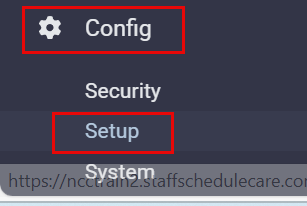
Select Config.
Select Setup.
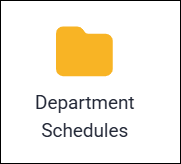
Select Department Schedules.
The following menu will appear:

▪Click on the plus symbol (+) to add a new group.
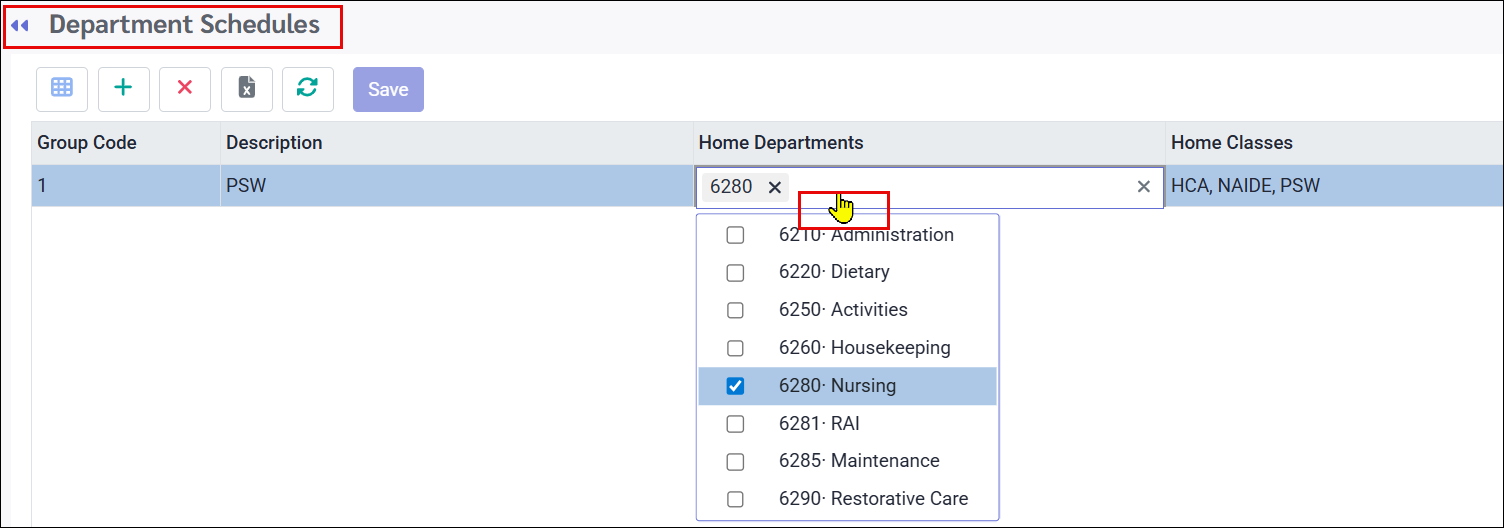
▪Double-click within the Home Departments and Home Classes rows to activate the corresponding drop-down menus and select the appropriate options.
▪Click Save.
▪Continue adding the groups you need.
The numeric Group Code will be created by the system automatically upon saving your group. The Description field can be modified at any time.
Creating Department Schedule Security Access
To provide department schedule security access to employees, please see Employee Department Schedule Access.
Employee Department Schedules
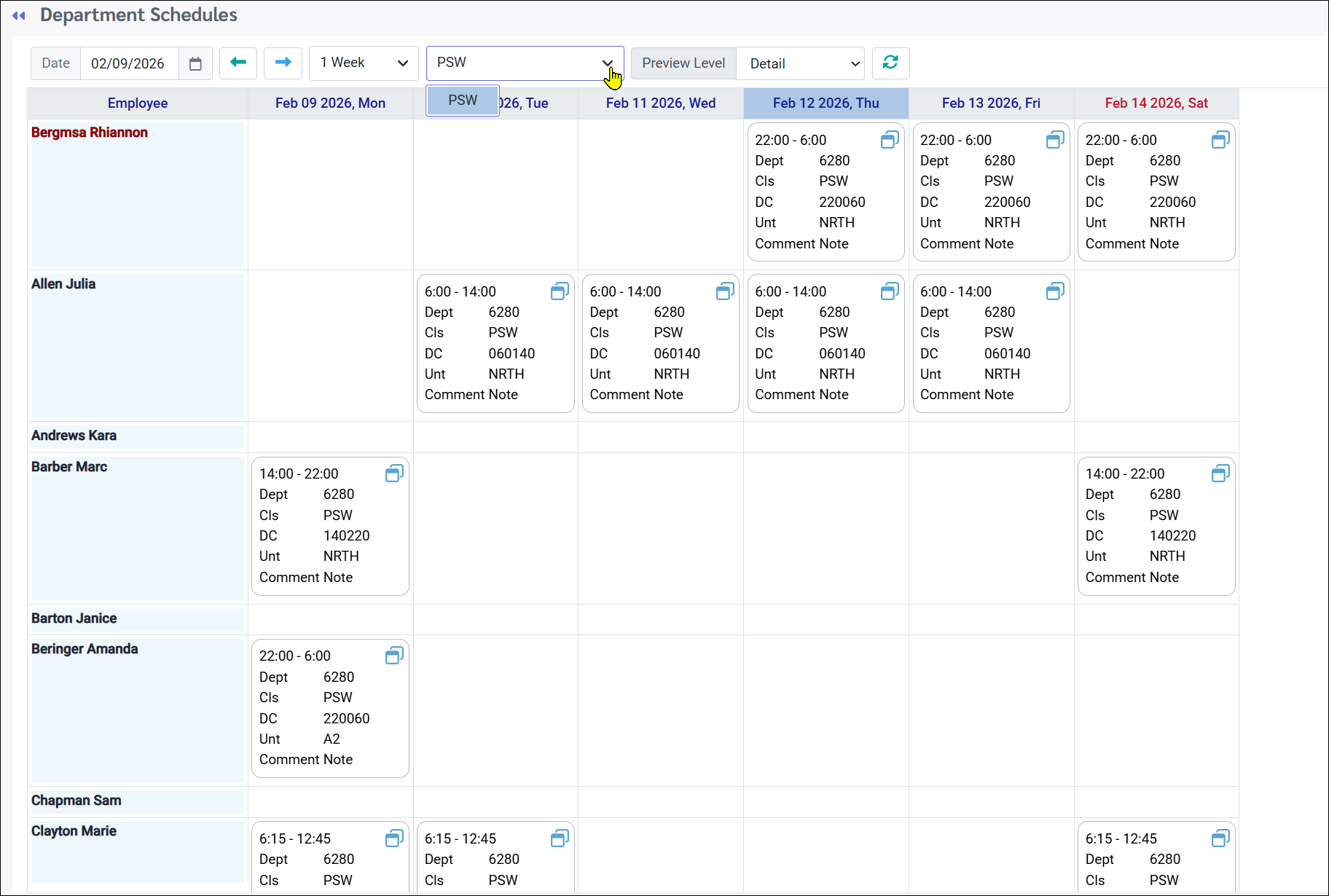
Once the groups are created and employees have been given access, they will be able to see their home department and class schedules as follows:
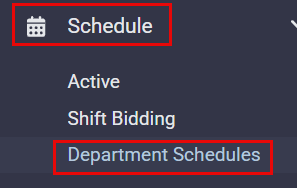
Example of an employee department schedule:
See Also: